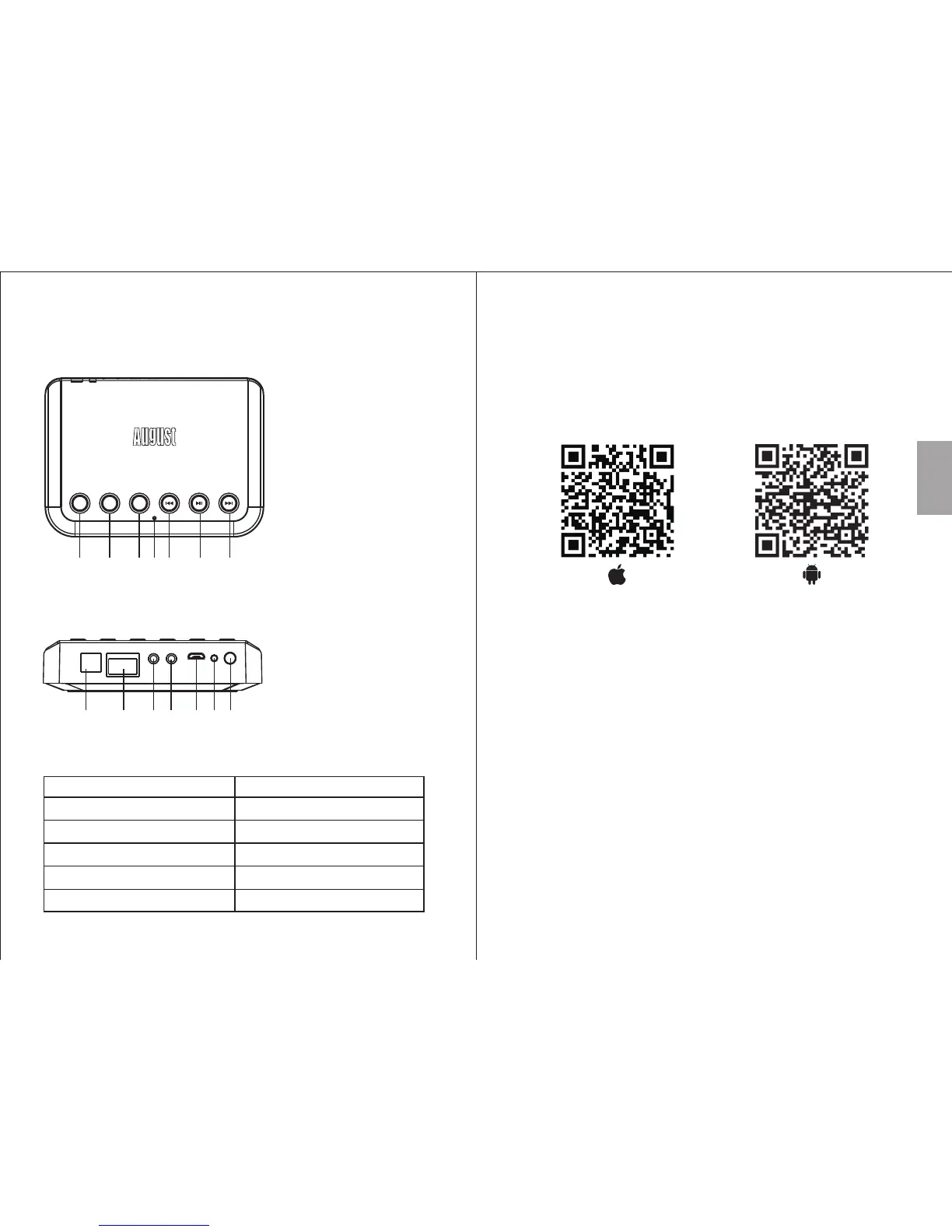
4.2 Back
4.3 Status LED Meaning
Indication Status LED
Entering Wi-Fi Mode Flashing Green
Wi-Fi Mode Green
Line – In Mode Red
Bluetooth Pairing Mode Flashing Blue
Bluetooth Connected Blue
-3-
AUX INLANOPTICAL AUX OUT WPSDC 5V
Reset
1 2 3 5 6 74
1.Optical-Out
2.LAN
3.AUX-Out
4.AUX-In
5.Micro USB Power Port
6.Reset
7.WPS Button
1. Scan the QR code below with your device or search for
'August Alink' to download and install the app from
Google Play or the Apple Store.
Note: For Blackberry phones, go to www.augustint.com to
download the application as an .apk file and install it.
2. Enable Wi-Fi on your device and connect to your
network.
3. Connect the WR320 to a powered USB port using the
provided cable. The WR320 will switch on automatically
and enter Wi-Fi mode. Once in Wi-Fi mode, the status
LED will light green.
4. Run the App and follow the on-screen guide to set up.
Tip: Once in Wi-Fi mode, you can connect the WR320 to
your Wi-Fi directly from your router, without using the
application. Press WPS on the WR320, then press the
WPS button on your router. They will connect
automatically.
English
-4-
1.Mode Switch
2.Preset 1
3.Preset 2
4.Previous
5.Play / Pause
6.Next
7.Status LED
M P1 P2
1 2 3 4 5 67
4. Part Names and Functions
4.1 Top
Quick Start Guide


 To Next Page