Table of Contents
1. Safety Instructions -------------------------------1
2. Main Features --------------------------------------2
3. Box Contents ---------------------------------------2
4. Part Names and Functions ----------------------3
4.1. Top -------------------------------------------------3
4.2. Back ------------------------------------------------3
4.3. Status LED Meaning ----------------------------- 3
5. Operation ------------------------------------------- 6
5.1. Installation ---------------------------------------- 6
5.2. Connection ----------------------------------------7
5.3. Wi-Fi Connection ----------------------------------7
5.3.1. Network Connection --------------------------7
5.3.2. Direct Connection ---------------------------11
5.4. Bluetooth Connection -----------------------------11
5.5. Multi and Solo Mode (Wi-Fi Connection Only) ----13
5.5.1. Solo Mode -----------------------------------13
5.5.2. Multi Mode ----------------------------------13
5.6. Receiver's Options (Wi-Fi Connection Only) ----13
5.7. Music Player (Wi-Fi Connection Only) ----------14
5.7.1. Local Music ---------------------------------15
5.7.2. Third Party Music Providers -----------------15
5.8. Line-In Mode -------------------------------------17
6. Troubleshooting ---------------------------------18
7. Specifications ------------------------------------19
8. Warranty -------------------------------------------20
5. Operation
5.1. Installation
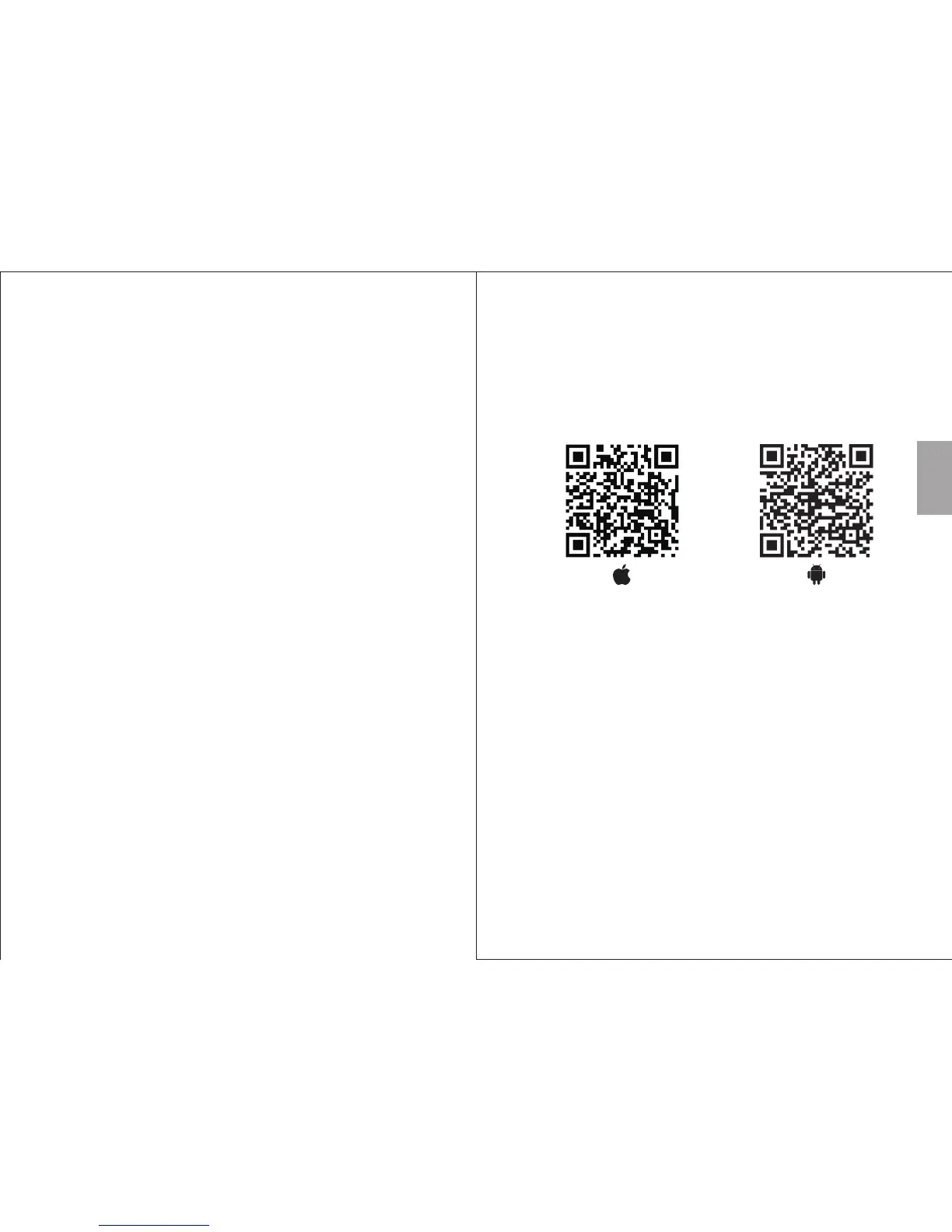
1. Scan the QR code below with your device or search for
'August Alink' to download and install the app from
Google Play or the Apple Store.
Note: For Blackberry phones, go to www.augustint.com
to download the application as an .apk file and install it.
2. Enable Wi-Fi on your device and connect to your
network.
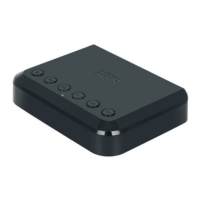
3. Connect the WR320 to a powered USB port using the
provided cable. The WR320 will switch on
automatically and enter Wi-Fi mode. Once in Wi-Fi
mode, the status LED will light green.
Tip: Once in Wi-Fi mode, you can connect the WR320 to
your Wi-Fi directly from your router, without using the
application. Press WPS on the WR320, then press the
WPS button on your router.. They will connect
automatically.
English
-6-
-5-


 To Next Page