5.5.1 Solo Mode
Solo mode enables multiple speakers that are
connected to the same network to play different music
individually. Speakers are by default in solo mode.
5.5.2 Multi Mode
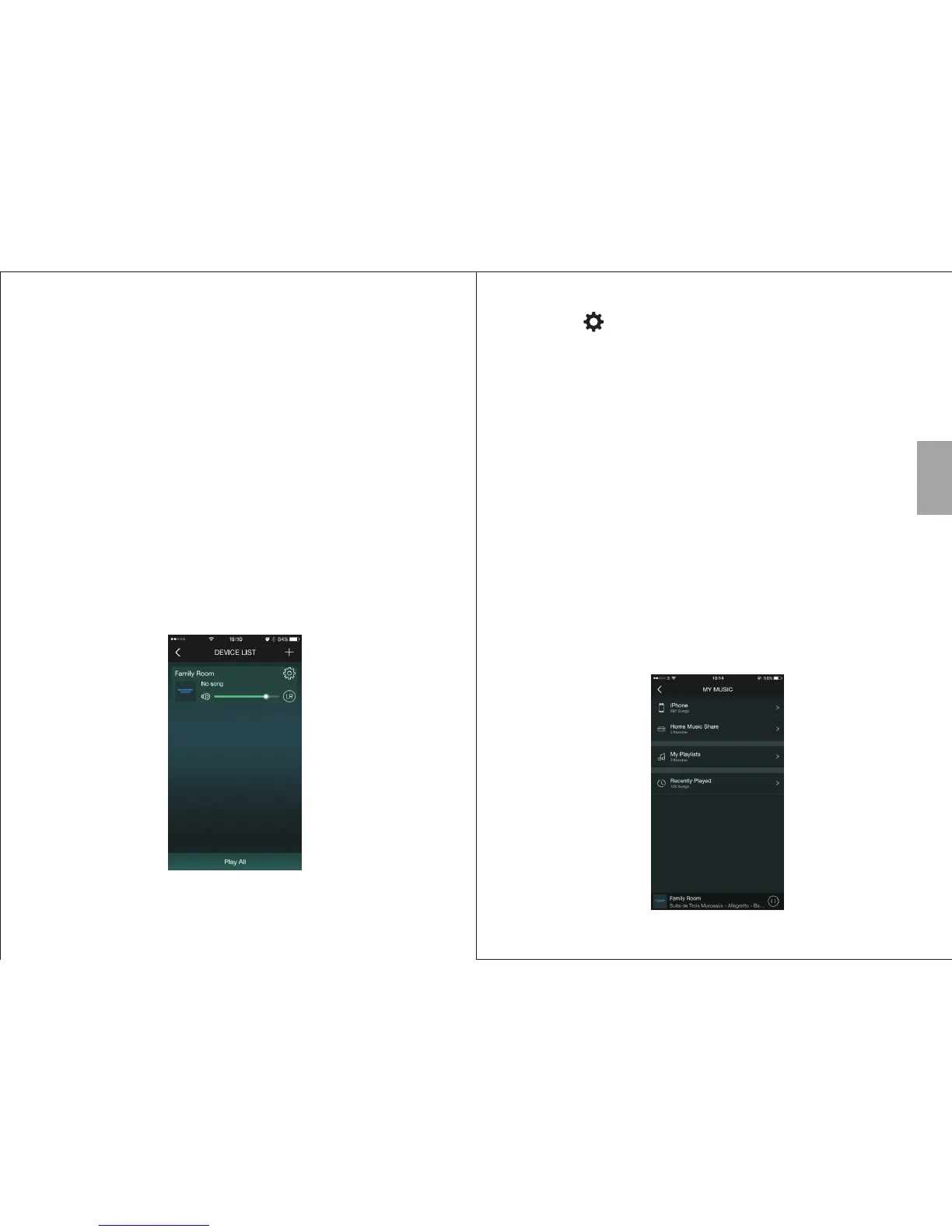
Multi mode enables you to group some or all of the
speakers connected to a network and have them play
the same music. This can be used to separate left and
right channels between speakers (see 5.6 Receiver
Options). To group speakers, press and hold the icon of
a secondary device and drag it towards the main
device's icon. To ungroup the speakers, press and hold
a secondary device’s icon and drag it down past the
dotted line on the screen.
5.6 Receiver’s Options (Wi-Fi Connection Only)
You can change your device’s settings under the
‘DEVICE LIST’.
English
-14-
-13-
1. Press to see the available options.
2. Press 'Rename' to change the name of the speaker.
Select one available name, then press 'Finish' to
confirm or press '<' to cancel. You can also
customize the speaker's name by selecting
'Custom…'.
3. Press ‘Receiver Info' to see the detailed information.
Select 'Restore Factory Settings' to reset the
receiver's Wi-Fi setting.
Tip: Press <L>, <R> or <LR> to change the channel
between left, right and stereo for the selected speaker.
5.7 Music player (Wi-Fi Connection Only)
In solo mode, multiple speakers can play different
tracks. In multi-mode, all the speakers within the
network will play the same track as the main speaker.
To select a music source:


 To Next Page