32
2. A warning message displays to advise of data loss if this function is
completed.
a) Tap Yes to continue. A confirming screen displays when the
operation is successfully done.
b) Tap No to exit.
3. Tap ESC on the confirming screen to exit Erase Codes.
4. Perform the Read Codes function again to check if codes have been
erased successfully.
4.5.4 Live Data
When this function is selected, the screen displays the data list for the selected
module. The items available for any control module vary by vehicle. The
parameters display in the order that they are transmitted by the ECM, so expect
variation between vehicles.
Gesture scrolling allows for quick movement through data list. Using one or two
fingers, simply swipe the screen up or down to locate the data you want. The
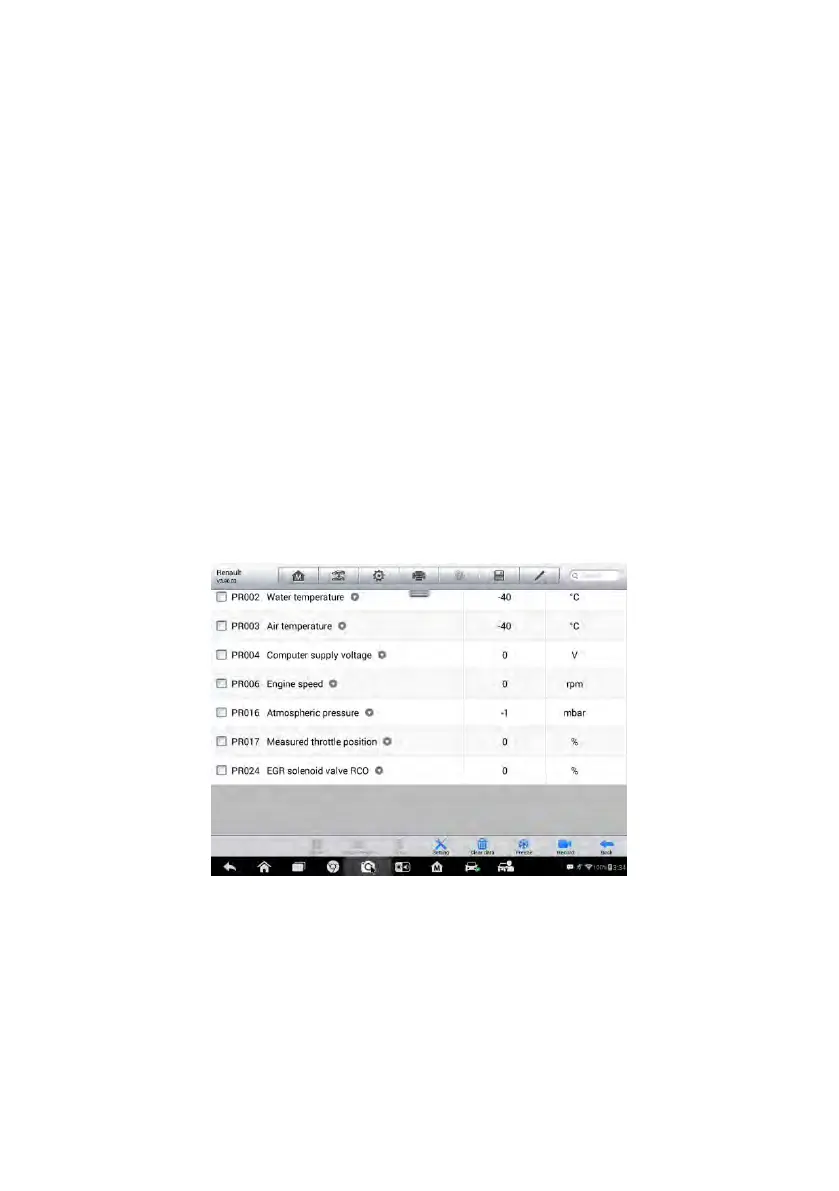
figure below shows a typical Live Data screen:
Figure 4-10 Sample Live Data Screen
1. Diagnostics Toolbar Buttons – tap the drop-down button at the top
center of the screen and the toolbar buttons will display. See Table 4-2
Diagnostics Toolbar Buttons on page 23 for detailed descriptions of the
operations for each button.
2. Main Section
Name Column – this column displays the parameter names.




 To Next Page