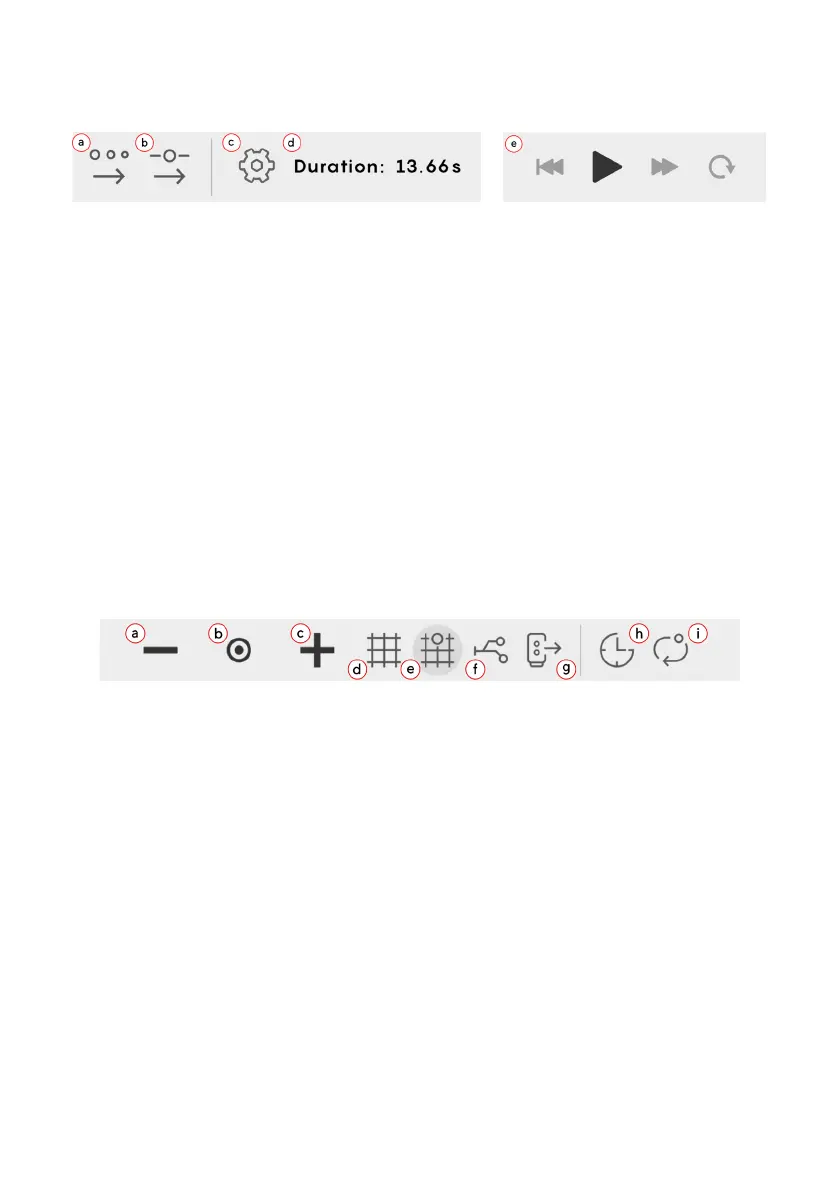
The remainder of this toolbar deals with the properties of the toolpath:
Beneath the timeline slider is a toolbar that deals with special waypoints and
views:
a.
b.
c.
d.
e.
a.
b.
c.
d.
e.
f.
g.
h.
i.
Reassign numbers to waypoints based on the order in which they were
created
Reassign numbers to waypoints based on the order they first appear on
the timeline
Open the toolpath settings menu, dealing with global speed and analog
I/O modes
The total duration of the timeline is displayed, based on current settings
Simulate the toolpath; restart, play, skip or loop the timeline
(Off-the-robot only) Beneath this toolbar is a timeline slider that can be
dragged to simulate the toolpath.
Zoom out from the timeline
Restore the timeline to its default view
Zoom in to the timeline
(note: navigate by clicking and dragging in empty space on the timeline)
Drag into the timeline to create a grid loop sequence
Drag into a grid branch to create a grid waypoint
Drag into the timeline to create a conditional branch
Drag into the timeline to create an I/O action
Drag into the timeline to create a wait action
Drag into a conditional loop branch to create a restart action
(note: see Programming with Choreograph for information on grids and
conditions)
12


 To Next Page