STEP 4.EDIT PARAMETER
Press the UP or DOWN button to display a cursor on the parameter’s value. The controller is now in EDIT MODE. With each press
of the UP or DOWN button the parameter value will change. Holding the button down causes the parameter’s value to change
rapidly. The longer the button is held the faster the value changes.
The control board has many parameters which modify its operation. This section illustrates how the
parameters are located , viewed and adjusted.
STEP 1.LOCATING PARAMETERS
Using the MENU STRUCTURE figure or the relevant section within CONTROL BOARD ADJUSTMENTS, locate the parameter of
concern and obtain the MENU number which contains it. For illustration purposes “CLOSE LOCK TIME” will be used as an
example. From the table it can be seen that CLOSE LOCK TIME is located in MENU 4.
STEP 2.NAVIGATE TO MENU
From the MAIN SCREEN, Use NEXT / PREV to navigate to the required menu (MENU 4), press SET to show the parameter list.
STEP 3.VIEW PARAMETER
The controller is now in VIEW MODE and the first parameter in the list will be displayed. Using the NEXT / PREV buttons step
through the list of parameters until the required parameter is displayed.
If the parameter’s value is not to be changed then skip to step 7 when finished viewing the parameters.
PARAMETER VIEWING AND EDITING
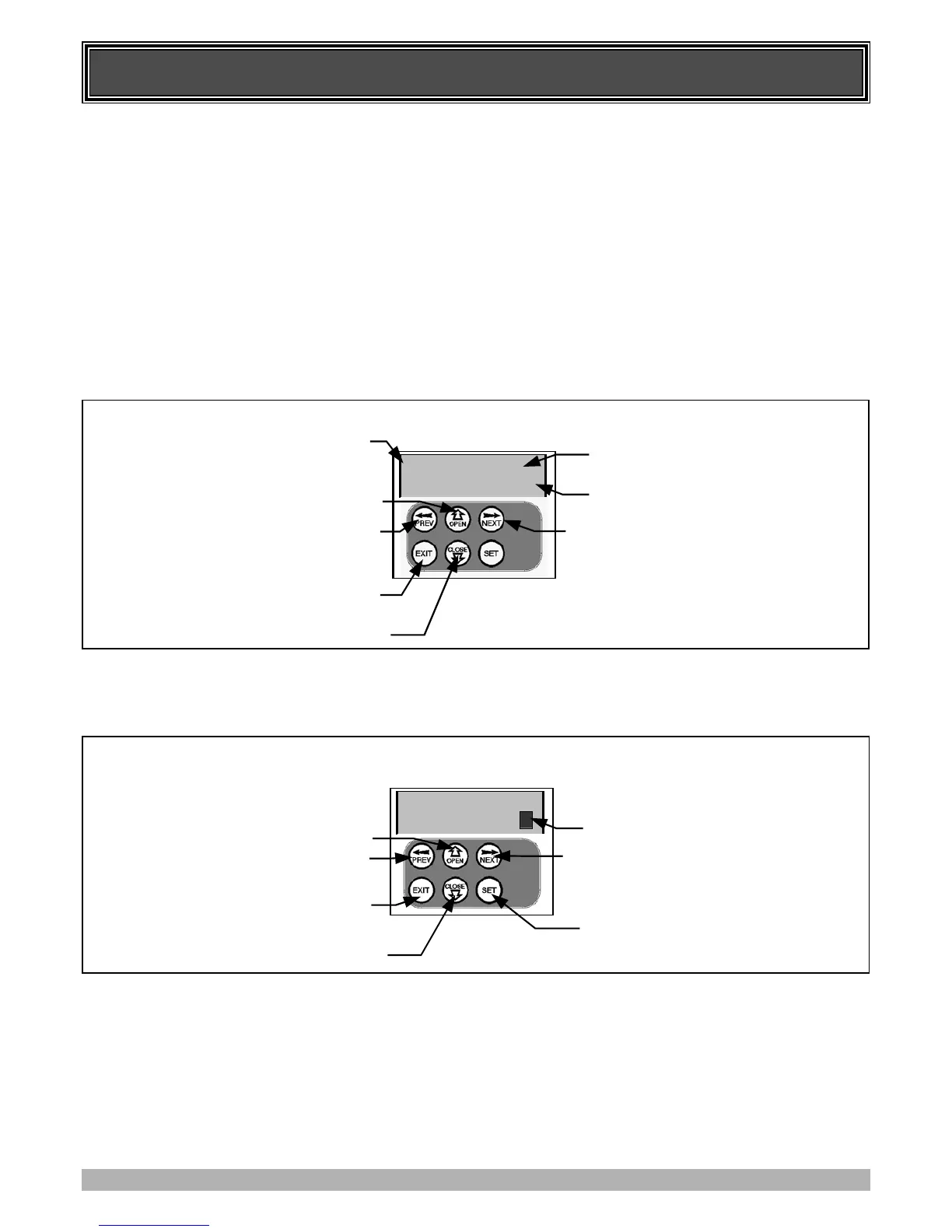
Displays “Load Default?” Screen,
which gives the option of loading
the default value.
VIEW MODE (No Cursor)
EDIT MODE (Cursor shown)
17
STEP 5.RELOADING DEFAULT
To load the parameter’s default setting, press the NEXT or PREV buttons to display the LOAD DEFAULT screen, press SET to load
the default value.
STEP 6.SAVING CHANGES
To save the new value press SET. To leave without saving changes, press EXIT. In both cases EDIT MODE will exit and VIEW MODE
will be re-entered
STEP 7.FINISHING UP
Press EXIT to return to the MENUS and then press EXIT again to return to the MAIN SCREEN.



 To Next Page