17
You may now set up other chargers by following the same instructions in this
section above.
Click “Done” to return to “Account Manager: Charger Setup”
• Click “Add User”. You will be directed to the “Account Manager: Edit
User” screen: enter a User Name. (Remember that the simplest solution is
to assign one “Universal ” User Name and PIN for all users. You may also
choose to assign individual User Names and PINs.)
• Then enter the User PIN, and make sure the “Ac tive” button is switched on.
When asked “Save Changes?” click “Confirm”.
• You may add more Users by clicking “Add User” again on the “Account
Manager: Charger Setup” Screen and repeating the steps above.
NOTE
If the Backup Device has an individual PIN, you may not want
to make this PIN publicly known. As soon as you can, follow the
instructions in the TurboDock Driver’s Manual to connect the
Backup Device to every charger. The PIN will then be saved in
the Device, so whoever borrows it need not know the PIN.
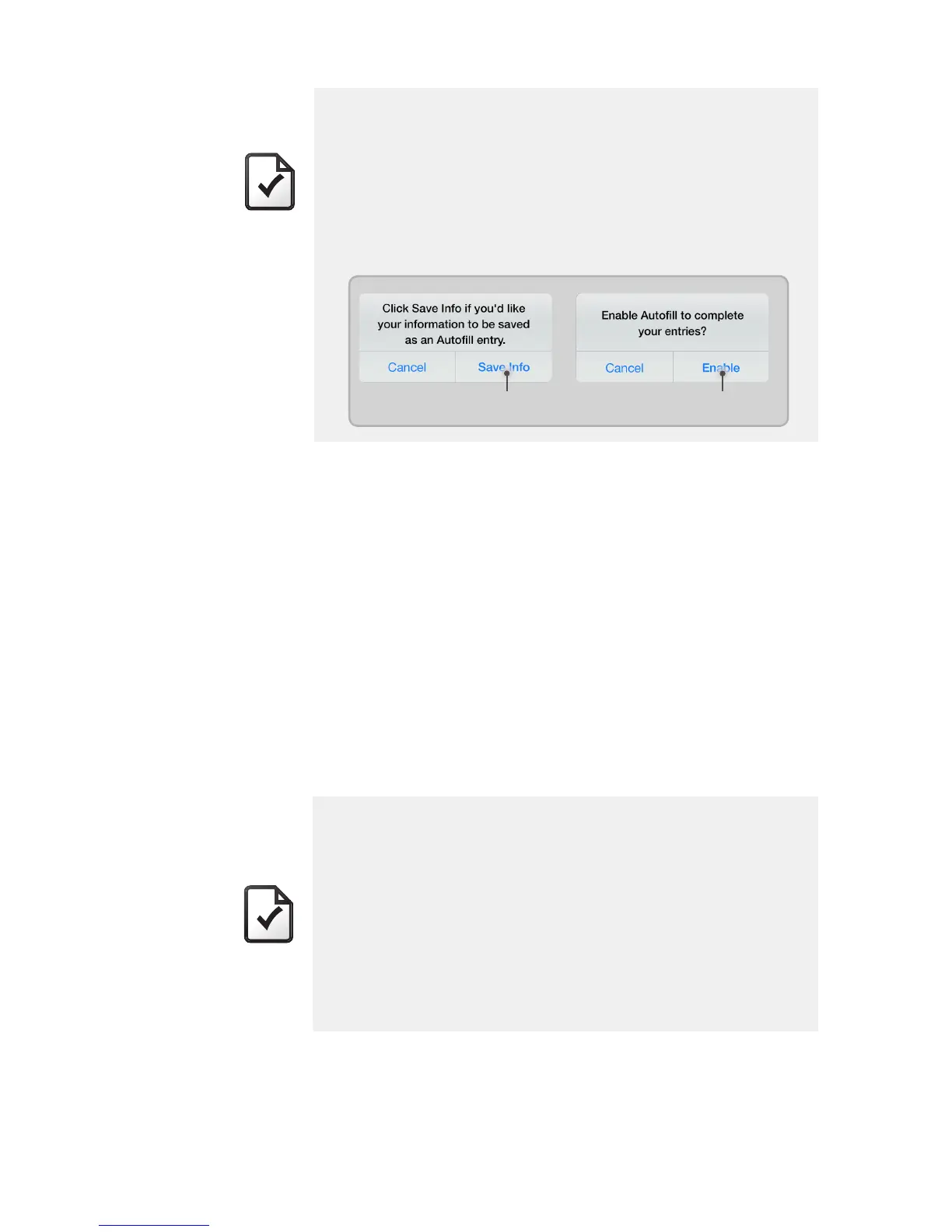
NOTE
• If this is the first charger you’ve set up, a screen will ask you
if you want to save your informationas an Autofill entry.
This will make it easier to set upthe remaining chargers
by reusingthe same Company Name, Contact Name, and
Contact Number. Click “Save Info” to save the Autofill.
• If this the second or other charger, you will be asked “En-
ableAutofill to complete your entries?” Click “Enable” to
complete the fields.
You cannotcharge a vehicle while logged in as an “Account Manag-
er”. You will have to exit the app and log back in as a “User”. (See
TurboDock Driver’s Manual for how to use TurboDock as a “User”.
Remember, you can’t perform any Account Manager functions
while logged in as a User.)
Click
Click
................................................................................................................


 To Next Page