20
This section explains how to add or modify users, chargers, and Account Managers
after the setup has already been done.
For all of these tasks, you must connect to the charger using your Admin PIN.
If you want to perform the same task for all chargers, you must connect to each
one in turn and perform the task again.
5.1 USERS
You can add new Users, or modify a User’s information, for the charger you’re
connected to. If, for example, you have two new drivers and wish to assign an
individual PIN for them to all chargers, you will have to connect to the first
charger, add the two users with their individual PINs, then connect to the
second and add them again, etc.
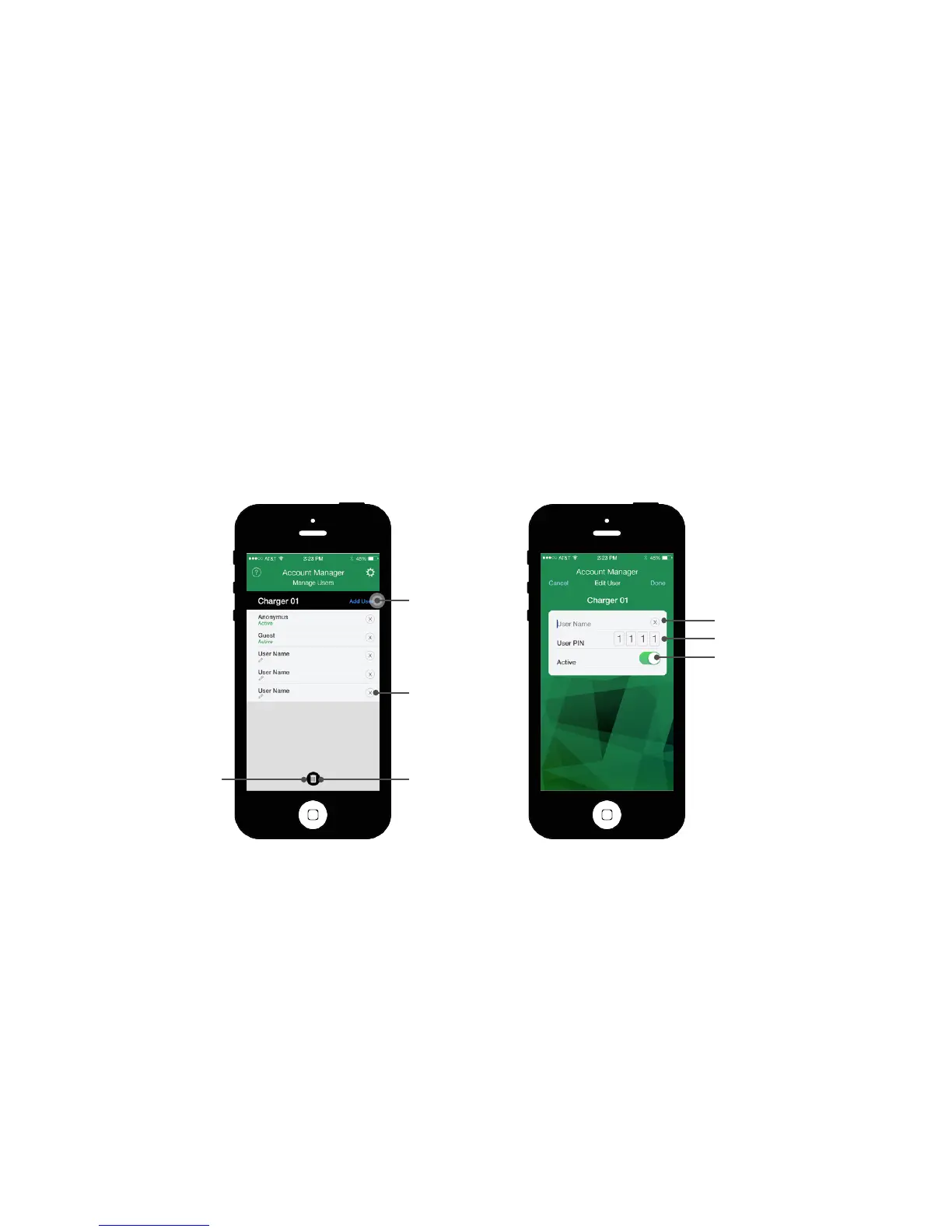
On the “Account Manager: Settings” screen select “Manage Users”. You will
see any other Users already assigned to this charger.
• To add a user, click “Add User” and enter the User Name and PIN.
• To delete a user from the current charger, click the “X” icon next to his
name. You will be asked to confirm the deletion.
To change a User’s Name, PIN, and/or Active status, tap the User to open the
“Account Manager: Edit User” screen.
• To change the User’s Name, overwrite it with a new one. (This has no effect
on the User, who doesn’t need his User Name to connect to TurboDock.)
• The existing PIN appears on this screen. To change it, just enter a new PIN.
• To prevent the User from using this charger, switch the “Active” button off.
• All users can be deleted by tapping the Trash icon at the bottom of the
screen.
• All users can be saved by tapping the Save icon at the bottom of the
screen.
Click “Done” when finished.
“Ad d User”
“Delete”
“Delete All”
“Save All”
User Name
User PIN
Set Active
On/Off


 To Next Page