SHIFT
User Manual
13
EN
If you connected to your TV via the optical OUT or “OPT OUT” port, you’ll need
to congure your TV settings before you’ll receive audio.
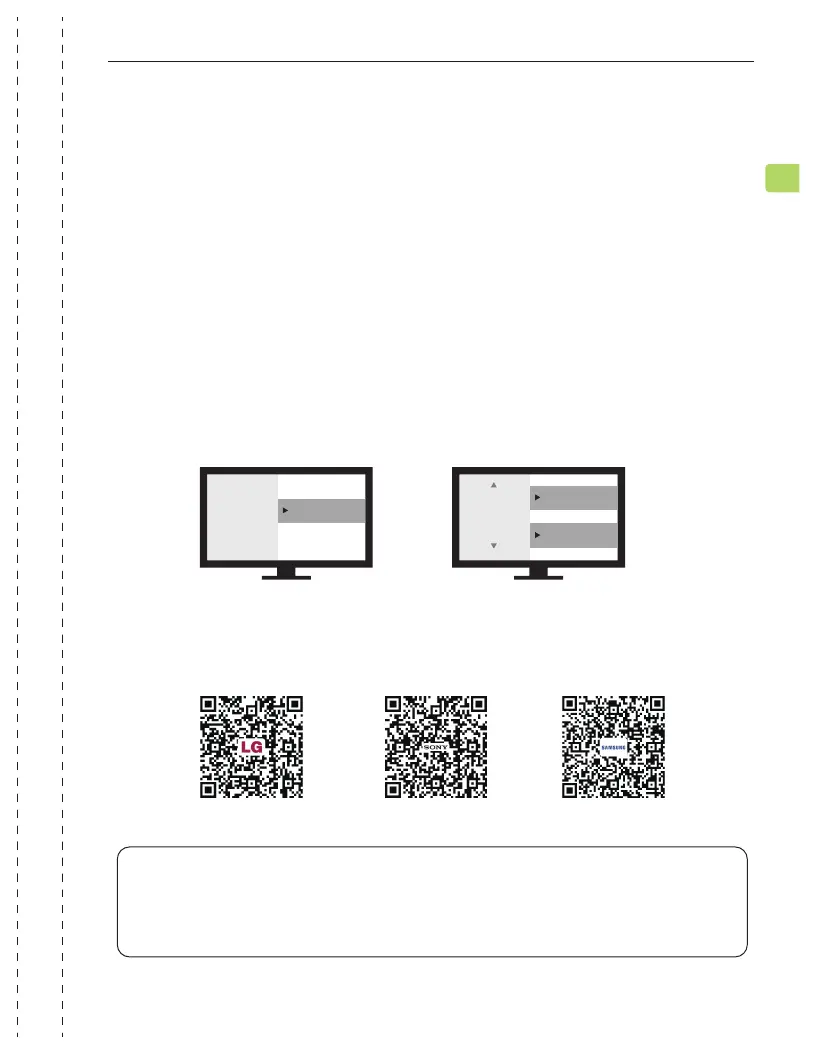
Using your TV’s remote control, press the SETTINGS button and navigate
to the AUDIO tab within the settings menu. (Please note that there may be
dierences in the setting names depending on your brand of TV).
STEP 1
Proceed to AUDIO OUTPUT and select “OPTICAL OUT / DIGITAL OUT”.
Many TVs will do this automatically; skip this step as needed.
STEP 2
Set Audio Output format to “PCM / STEREO” ON or “DOLBY ”OFF.
If you’re having trouble nding these settings, you can scan the QR code
correlating to your TV’s brand OR visit
avantree.com/shift/tv-audio-settings for a more detailed guide.
STEP 3
LG SONY SAMSUNG
Sound
Audio Out Optical Out
Digital
Audio
Format
or
PCM/Stereo
Dolby - OFF
NOTE 1: Smart TVs automatically reset their settings after system updates. Make sure
your audio output / input format is set to “PCM” and NOT “AUTO” or “Dolby.”
NOTE 2: When using Netix or Amazon Prime, you may need to start the movie / show
before changing the audio settings to “PCM.”
Setting Up Your TV (For optical connections only)


 To Next Page