For assistance contact the Help
Desk at 6074.
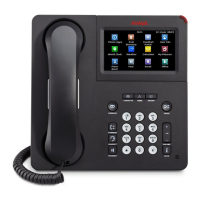
Avaya Model 9611G IP
Desk Phone
Quick Reference Guide
Calling a person from the contacts list
You can call a contact in your contacts list by using the
arrows to highlight the name.
• Press the Contacts button.
• Select the person or primary number you want
to call.
• To call a non-primary number, select the
person, press Details, then select the desired
number.
Locate the contact you want to call by typing the name
of the person as listed.
Navigation tips
A navigation icon appears in the telephone
display to indicate that you can scroll to more options or
information. Use the right and left navigation arrows to
go to other screens when the paging icon (left- and
right-facing arrows) displays on the title line or to move
the cursor right or left when entering text.
Home Button
The “Home” button will bring you to the Avaya Menu
Screen. Here you can adjust and customize options
and settings for your telephone
When you press the “Home” button, you see the
following menus:
• Options & Settings
• Network Information
• Guest Login
• Log Out
• About Avaya one-X
Features Menu
The Features menu, allows you to program speed dial
keys, search the directory and use Conference. For
more information about what features are available
contact the help desk.
Accessing the Features menu
• From the Phone screen, use the navigation
button and scroll to the right side to access the
Features menu. For models with LEDs, the
LED next to the feature name indicates if the
feature is currently on or off. If the light is on,
the feature is on and the light is green
Setting up a conference call You may have
up to 6 people on a conference call including
yourself.
• From the Phone screen, select your active
call if not already on that line.
• Press Conf.
• Dial the telephone number, or call the
person from the Contacts list, or call the
person from the History list.
• When the person answers, press Join or
OK to add the person to the existing call.
• Press Add and repeat these steps to add
another person to the conference call.
Adding a person on hold to a conference call
• From the Phone screen, select your active
call.
• Press “Conf”, you will get dial tone
• Select the call on hold that you want to add
to the conference.
• Press “Join” to add the person to the
conference call.
Dropping a person from a conference call
• From the Phone screen, select your active
call.
• Press Details.
• Select the person you want to drop.
• Press Drop.
Note: To drop the last person you added onto the call, Press
the “Drop” Button
Voicemail
Access from your own office extension
• Press the message button / enter your
password (try 2583695#)
Access from voicemail from a remotely
1. Dial the Access Number: 2400
2. From outside the office 416-635-2400
3. When the system answers, press #
Enter your 10 -digit mailbox number:
(ie: 5551168080 – no not press # after)
4. Enter your password –(try 258369#)

 Need help?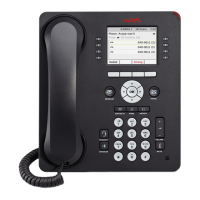

 To Next Page
 General