EasyManua.ls Logo

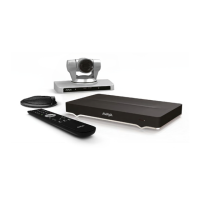
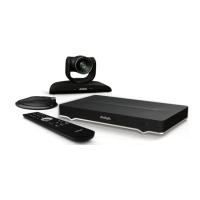
Avaya Scopia XT4300 - User Manual

Avaya Scopia XT4300
125 pages
Print Icon
To Next Page IconTo Next Page
Loading...
Avaya Scopia
®
XT Series User Guide
Release 9.1
December 2017
Avaya - Proprietary. Use pursuant to the terms of your signed agreement or Avaya policy.
DRAFT—December 15, 2017—1:33 PM (UTC)

Table of Contents

Other manuals for Avaya Scopia XT4300

Questions and Answers

  • M
    Mary WhiteSep 8, 2025
    How to restore audio on Avaya Scopia XT4300 Conference System after setup?
    • B
      Bruce OwensSep 8, 2025
      If you cannot hear audio after setting up your Avaya Conference System, ensure that the system volume is not set to 0. You can adjust the volume by pressing the volume keys on the XT Remote Control Unit.
  • M
    Melissa SandersSep 7, 2025
    Why my Avaya Conference System cannot connect to a videoconference?
    • N
      Nicholas WilliamsSep 7, 2025
      If you cannot connect to a videoconference using your Avaya Conference System, first check that you have dialed the correct conference number. Also, verify that you are registered to the correct gatekeeper or SIP Proxy. These steps should help resolve the connection issue.
  • J
    Jamie CowanAug 22, 2025
    How to fix Avaya Conference System when calls are not connecting?
    • P
      Perry PattonAug 22, 2025
      If your Avaya Conference System calls are not connecting, first, verify that you have dialed the correct number or address. If the issue persists, recheck the Network Configuration, Network Preferences, and H.323/SIP Proxy settings to ensure they are correctly configured.
  • B
    brenda35Sep 4, 2025
    How to troubleshoot Avaya Scopia XT4300 monitor display problems?
    • J
      Jennifer JohnsonSep 4, 2025
      To troubleshoot display problems with the Avaya Conference System monitor: Ensure the rear panel of the XT Codec Unit is connected to a main and auxiliary screen using the HD outputs. Ensure your system administrator has configured the system for the correct video resolution. When not in a call, adjust the refresh frequency of the monitor display.
  • S
    Samantha Duarte MDSep 3, 2025
    Why I cannot control Avaya Scopia XT Control endpoint with keyboard and mouse?
    • A
      awyattSep 3, 2025
      If you cannot control the Avaya Scopia[®] XT Control endpoint with your keyboard and mouse, ensure your computer and the XT Series are connected to the network, and that the DVI cable is properly connected to the XT Executive. Check via the XT Series web interface that only your computer is connected to the XT Executive.
  • J
    James WangSep 1, 2025
    What to do if Avaya Conference System screen is blank?
    • C
      Carol MaddenSep 2, 2025
      If the Avaya Conference System monitor is blank, verify the power cords of both the XT Codec Unit and the monitor are properly connected at both ends. Ensure the monitor is connected to HD1 and powered on. Check that the XT Codec Unit’s LED is on; if it’s blinking, press the Power key on the XT Remote Control Unit. Finally, confirm the XT Codec Unit output is correctly connected to the monitor input and that the monitor/DVI cable is properly connected.
  • D
    Denise HamiltonAug 31, 2025
    What to do if Avaya Scopia XT4300 screen is flickering or blank?
    • L
      Laura PetersonAug 31, 2025
      If the Avaya Conference System monitor is flickering or blank, verify the power cords of both the XT Codec Unit and the monitor are properly connected at both ends. Ensure the monitor is connected to HD1 and powered on. Check that the XT Codec Unit’s LED is on; if it’s blinking, press the Power key on the XT Remote Control Unit. Finally, confirm the XT Codec Unit output is correctly connected to the monitor input and that the monitor/DVI cable is properly connected.
  • S
    Samantha WoodAug 30, 2025
    How to fix menus or remote presentation cropped on Avaya Scopia XT4300 Conference System?
    • A
      angelakingAug 30, 2025
      To resolve menus or remote presentation cropping on your Avaya Conference System monitor, adjust the image appearance through the monitor settings. You can access these settings via the XT Series web interface under Administrator settings > I/O connections > Monitor > Graphic Adjustments, or through the endpoint's main menu at Configure > Advanced > I/O connections > Monitor > Graphic Adjustments.
  • J
    James LuceroAug 28, 2025
    How to adjust cropped screen layout on Avaya Scopia XT4300?
    • J
      James SteinAug 29, 2025
      If the screen layout appears cropped on your Avaya Conference System, go to Configure > Quick Setup from the endpoint's main menu. Select Next to get to the Configure Monitor page, and then follow the on-screen instructions to adjust the image.
  • S
    Sherri SmithAug 27, 2025
    What to do if I cannot share presentation from my computer on Avaya Scopia XT4300?
    • J
      Jeffery ChavezAug 27, 2025
      Ensure the VGA/DVI cable is securely connected between your computer and the XT Codec Unit. Also, check that your computer's output resolution is supported by the Avaya XT Series.

Summary

About the XT Series

About the Models in the XT Series Product Line

Overview of each model in the XT Series product line.

Getting Started

Initial Workflow for XT Series Users

Steps to quickly get started with your XT Series endpoint.

Applying basic settings

Configuring essential settings for the XT Series.

Starting a New Call

Starting a Meeting

How to initiate a new meeting or call an endpoint.

Participating in Meetings

Presenting Content from Your Computer

Displaying content from your computer on the XT Series monitor.

Moderating Meetings

Moderating a Videoconference

Special rights and actions for moderators in a videoconference.

Changing the Video Layout for all Participants

Moderator controls for setting video layouts for all attendees.

Recording Meetings

Starting, pausing, or stopping meeting recordings.

Configuring Advanced User Settings

Setting Call Answering Preferences

Defining how the system handles incoming calls.

Enabling and Configuring Recording

Configuring preferences for recording meetings.

Troubleshooting the Avaya Scopia XT Series

Viewing System Information for Customer Support

How to view system information for support.

Resolving Monitor Display Problems

Troubleshooting issues with monitor display.

Resolving Problems Viewing Computer Content

Troubleshooting issues sharing or viewing computer content.

Resolving XT Remote Control Unit Problems

Troubleshooting issues with the XT Remote Control Unit.

Cannot Control with Keyboard and Mouse

Troubleshooting inability to control via keyboard/mouse.

Resolving Video or Audio Disruptions

Troubleshooting video or audio disruptions.

Avaya Scopia XT4300 Specifications

General IconGeneral
Video Resolution1080p (1920 x 1080)
Network ProtocolsH.323, SIP
Firewall TraversalYes
Dual StreamYes
Resolution1920 x 1080
MicrophoneIntegrated microphone array
Audio CodecG.711, G.722, G.729, AAC-LD
Video StandardsH.264, H.263
Data StandardsH.239
DisplayLCD

Related product manuals