11
Set up Your MT300
The modes built into your MT300 help you present video feeds in a single stream composited gallery,
follow the presenter in real time as they move, or frame the active talker. Choose from Live Mode,
Manual Mode and Auto Mode.
Before you start, make you have added your devices.
Live Mode
Live Mode requires no setup. Both Admin and User can see live views of added cameras, change
layouts and use pan-tilt-zoom functionality.
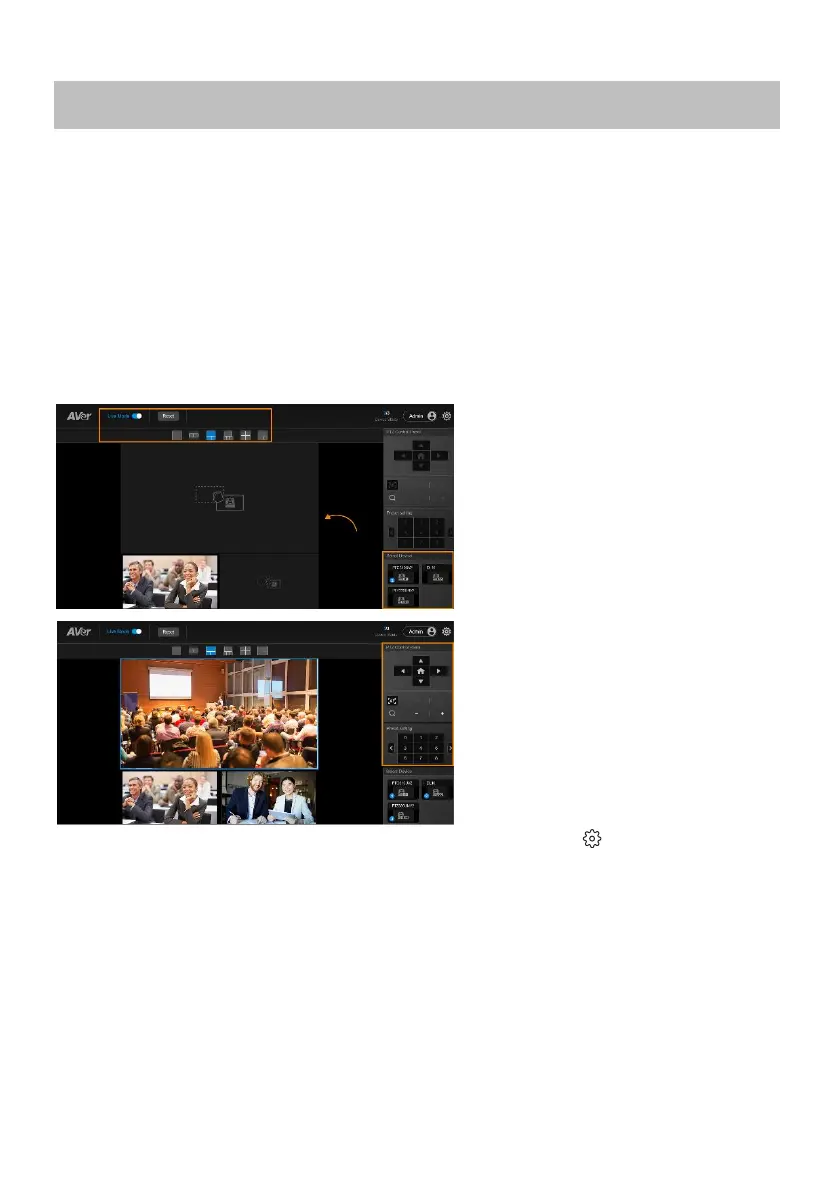
1. Toggle on Live Mode to enter Live
Mode.
2. Select a layout.
3. Drag a camera icon from the Select
Camera section to a cell.
A blue circled number will appear on
the camera icon to indicate the cell
position.
4. Click to select a live view. The selected
live view will be in a blue frame.
5. Use the pan-tilt-zoom control panel to
position and focus the camera.
6. Or go to a preset by selecting a preset
number.
7. Toggle off Live Mode to exit Live Mode.
Live Mode settings are saved
automatically. Your last selected profile
in Setting > Profile will be applied
when you return to the main page.
8. To clear settings, click Reset to reset
Live Mode to factory default settings.


 To Next Page