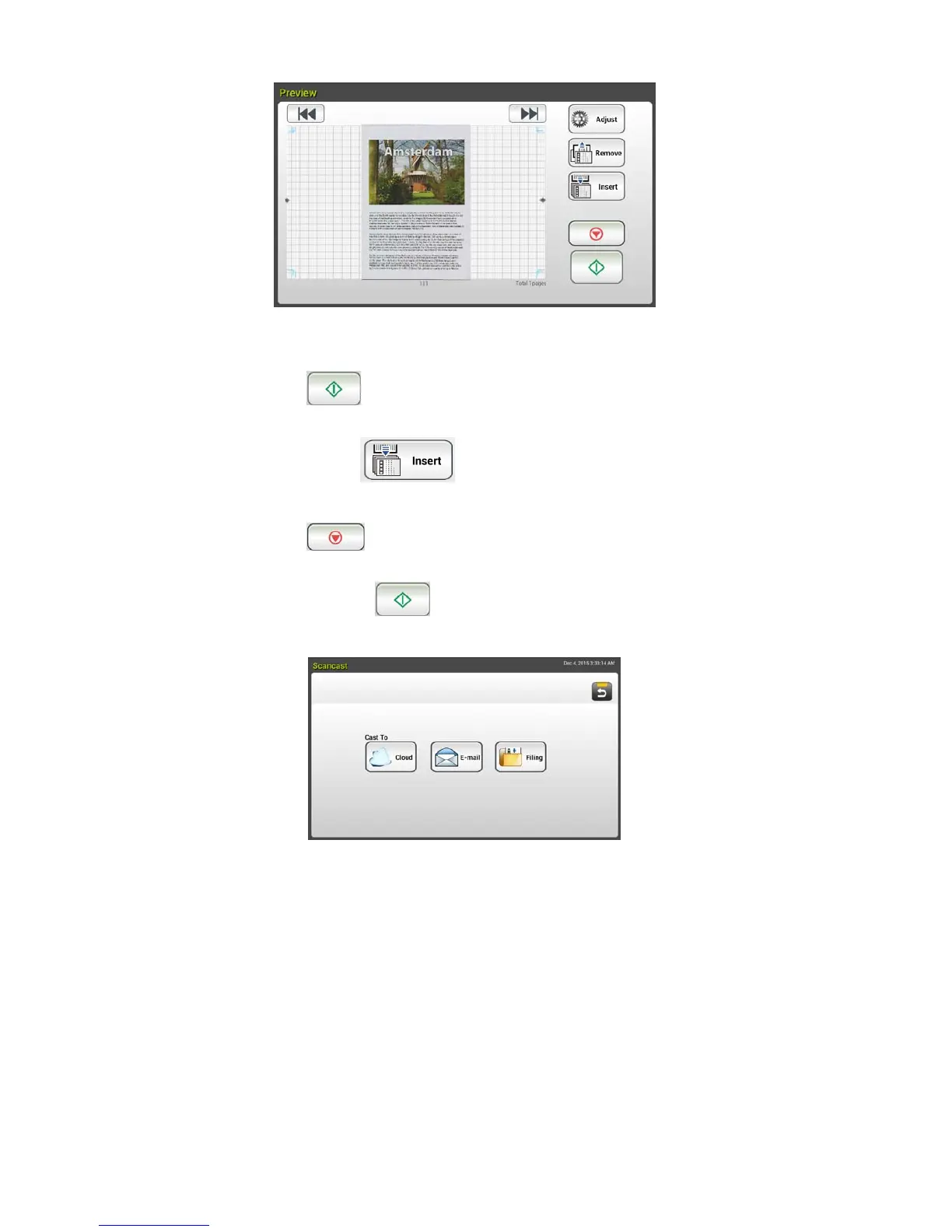
8. On the Preview screen,
Start: If the scanned image is OK, press the [Start] button
(
) on the touch panel to distribute the scanned image.
Insert: You may also insert more pages by taping the [Insert
Pages (
)] button on the bottom of the screen.
Cancel: If the scanned image is not OK, tap the [Cancel] button
(
) to abort the job.
9. If the [Start] (
) button has been selected, the [Scancast]
window for multiple destinations appears.
10. Choose a [Cast To] destination for your scanned image. Choice: Cloud,
E-mail, Filing.
- Cloud: Choose your desired cloud servers from a selection of
Dropbox, Evernote, and Google Drive.
- E-mail: Enter [To/From] e-mail address.
- Filing: Choose your network folder from a selection of Local or
Network. If Network is selected, the available network servers will
be displayed at the right box. You may use the Up-arrow or
Down-arrow button to scroll from the list.
If Local is selected, USB and Public Folder will be displayed at the
right box. If USB is selected, make sure a USB flash drive has been
inserted to the USB flash drive port of the product.



 To Next Page