Scanning From A NFC-Enabled Mobile Device
The scanner supports NFC (Near Field Communication), a short-range wireless
communication technology. By placing an NFC-enabled mobile device over the
NFC mark on the operation panel of the scanner, you can start a scan and
receive images directly from your mobile device.
Before Using the NFC Function:
1. Download and install "MB" App. The Scan App can be purchased for free
from Google Play.
3. Make sure Wi-Fi is enabled for the scanner.
Scanning with the NFC Function
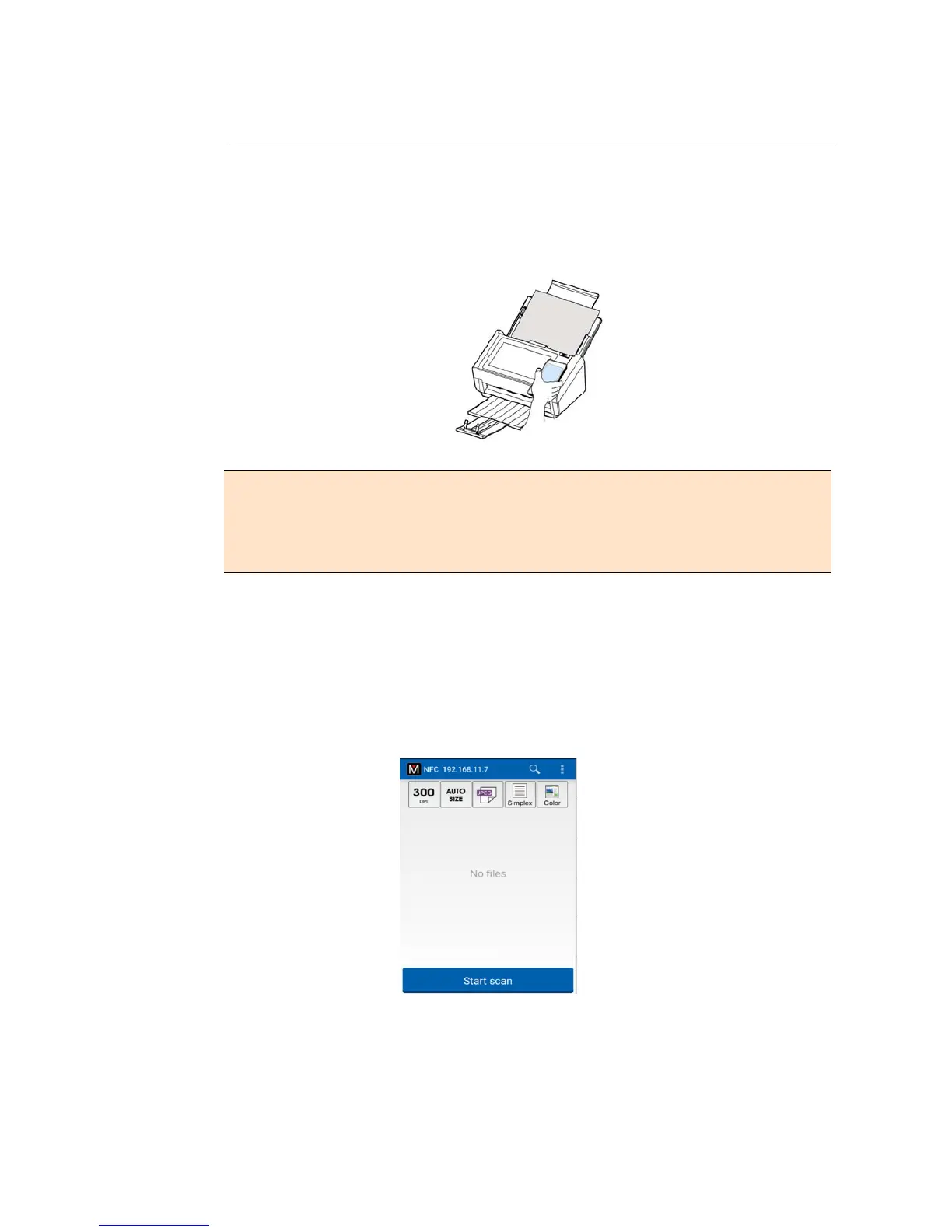
1. Load a document facing down to the feeder of the scanner.
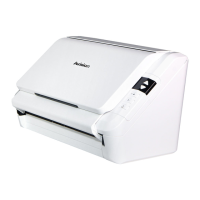
2. Hold your mobile device against the NFC logo on the operational panel of
the scanner.
3. If the NFC connection is successful, the MB app on your mobile device will
be started.
4. Modify the scan settings to suit your need.
5. Tap “Start scan” to start a scan.



 To Next Page