66
Note:
The NFC function has to work while the Wi-Fi is enabled for the scanner or the
following conditions will occur:
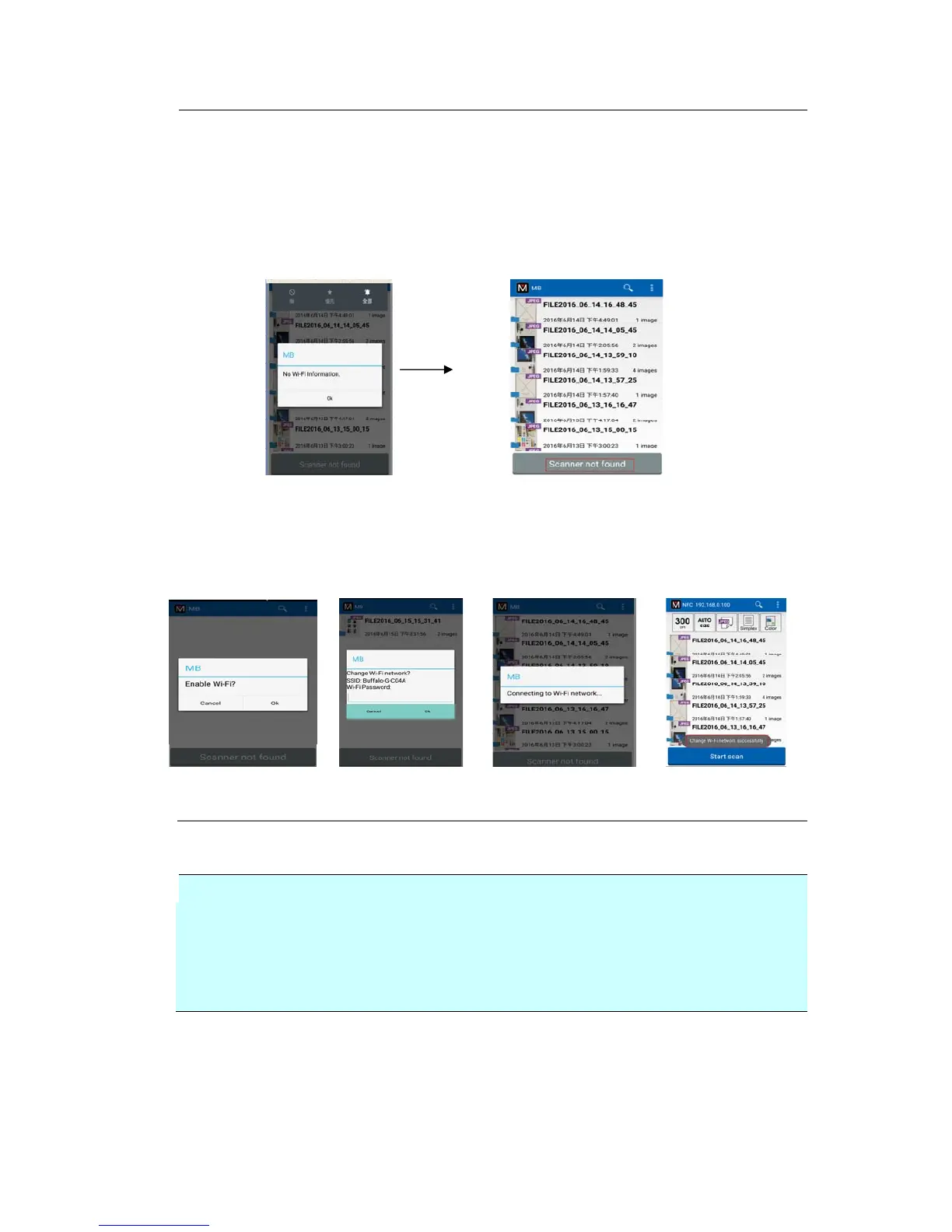
If Wi-Fi has been enabled yet no Access Point has been connected or if Wi-Fi
has not been enable on your scanner, the MB app will be launched and
displayed “No Wi-Fi information”. Tap “OK” and close the MB app.
Solution:
On your scanner, enable Wi-Fi and specify an Access Point.
If Wi-Fi has not been enabled on your mobile device, the MB app will guide you
to enable Wi-Fi and then connect to the Access Point as illustrated in below:
1. Enable Wi-Fi 2. Select SSID 3. Connecting Wi-Fi 4. Ready to scan
Important:
Your mobile device must support NFC.
Make sure you turn on the NFC function on your mobile device and your
scanner.
If your mobile device is not recognized, reposition your mobile device over the
NFC logo and try again.
The screen and message displayed may vary depending on your mobile device.



 To Next Page