Establishing a Wireless LAN Connection Manually or with WPS
11
4 Establishing a Wireless LAN Connection Manually or
with WPS
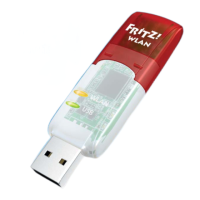
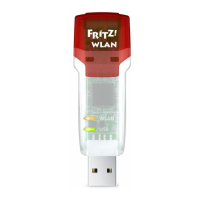
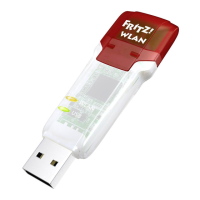
This section describes how to install the FRITZ!WLAN USB Stick on
your computer and establish a wireless LAN connection to any wire-
less LAN access point.
Depending on the features available on the wireless LAN access
point, you either enter the wireless LAN security settings on the com-
puter by hand, or establish the connection automatically with WPS.
On a FRITZ!Box with a port for USB devices, it is easier to establish
wireless LAN connections using Stick & Surf (see page 8).
4.1 Installing FRITZ!WLAN USB Stick in Windows
The FRITZ!WLAN USB Stick can be installed in Windows 8/7
(32-bit and 64-bit), Windows Vista (32-bit) and Windows XP
service pack 3 or higher (32-bit).
1. Start your computer.
2. Insert the FRITZ!WLAN USB Stick into a USB port on the
computer.
Windows will detect the device automatically.
Connecting FRITZ!WLAN USB Stick to the computer
3. In the “AutoPlay” window, click “FRITZ!WLAN USB Stick
N v2 Installation”.
This window does not always appear. In some versions
of Windows the device driver installation is performed
automatically without requiring any user intervention.
N_man_en.fm Seite 11 Freitag, 27. Mai 2016 2:21 14



 To Next Page