Connecting FRITZ!WLAN USB Stick to the Computer
9
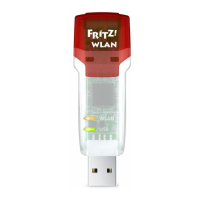
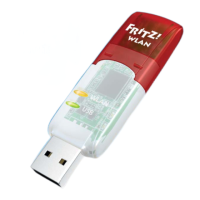
3. Remove the FRITZ!WLAN USB Stick from the FRITZ!Box.
The WLAN security settings of the FRITZ!Box are now saved on
the FRITZ!WLAN USB Stick.
3.3 Connecting FRITZ!WLAN USB Stick to the Computer
Once the wireless LAN security settings have been transmit-
ted to the FRITZ!WLAN USB Stick, connect it to your computer.
1. Start your computer.
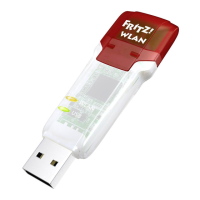
2. Insert the FRITZ!WLAN USB Stick into a USB port on the
computer.
Connecting FRITZ!WLAN USB Stick to the computer
3. Windows detects the FRITZ!WLAN USB Stick automatically.
When you insert the FRITZ!WLAN USB Stick in your com-
puter for the first time, the device drive installation
starts automatically. Continue with the next step.
If the device driver is already installed, a wireless LAN
connection between the computer and FRITZ!Box is es-
tablished automatically. The Stick & Surf logo appears.
Skip the next two steps.
4. In the “AutoPlay” window, click “FRITZ!WLAN USB Stick
N v2 Installation”.
This window does not always appear. In some versions
of Windows the device driver installation is performed
automatically without requiring any user intervention.
5. Confirm any questions asked during installation by click-
ing “Yes”, “Install” or “Continue”, for instance, the secu-
rity prompt by Windows’ user account control.
N_man_en.fm Seite 9 Freitag, 27. Mai 2016 2:21 14



 To Next Page