7 Appendix A: Format the microSD Card
The MicroZed Evaluation Kit ships with a blank microSD card. To ensure it is ready to be used in Linux and
later as a boot source, it must be properly formatted. To use the microSD card as a boot device, it must be
formatted as FAT32.
The following operations were performed on a Windows 7 PC using a built-in SD Card slot. If an SD Card
slot is not available on your PC, you will need to purchase an SD Card device or a USB-based microSD
adapter.
1. Insert the microSD card into the included SD Adapter.
2. Insert the SD adapter into the SD Card slot and wait for it to enumerate as a Windows drive. If
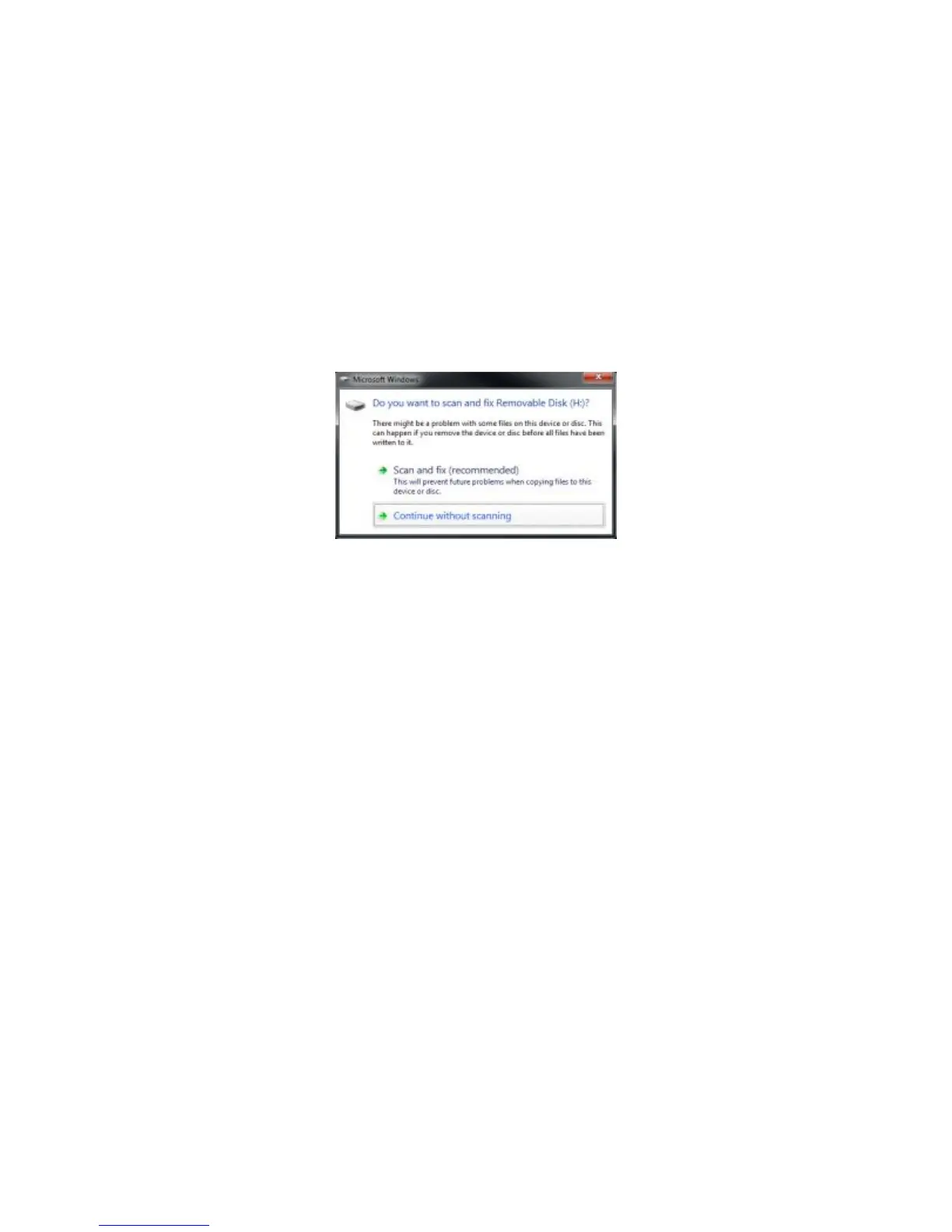
prompted by Windows when inserting the SD card, select the Continue without scanning option.
Figure 10 – Windows Prompt for Scanning and Fixing an SD Card
3. Find the assigned SD Drive in Windows Explorer.
4. Right-click and select Format.


 To Next Page