Colour Temperature: Select Colour Temperature from the Video Settings menu to adjust the colour temperature.
Colour temperature establishes the “colour of grey” by adjusting the 75% white point to various colour points.
•
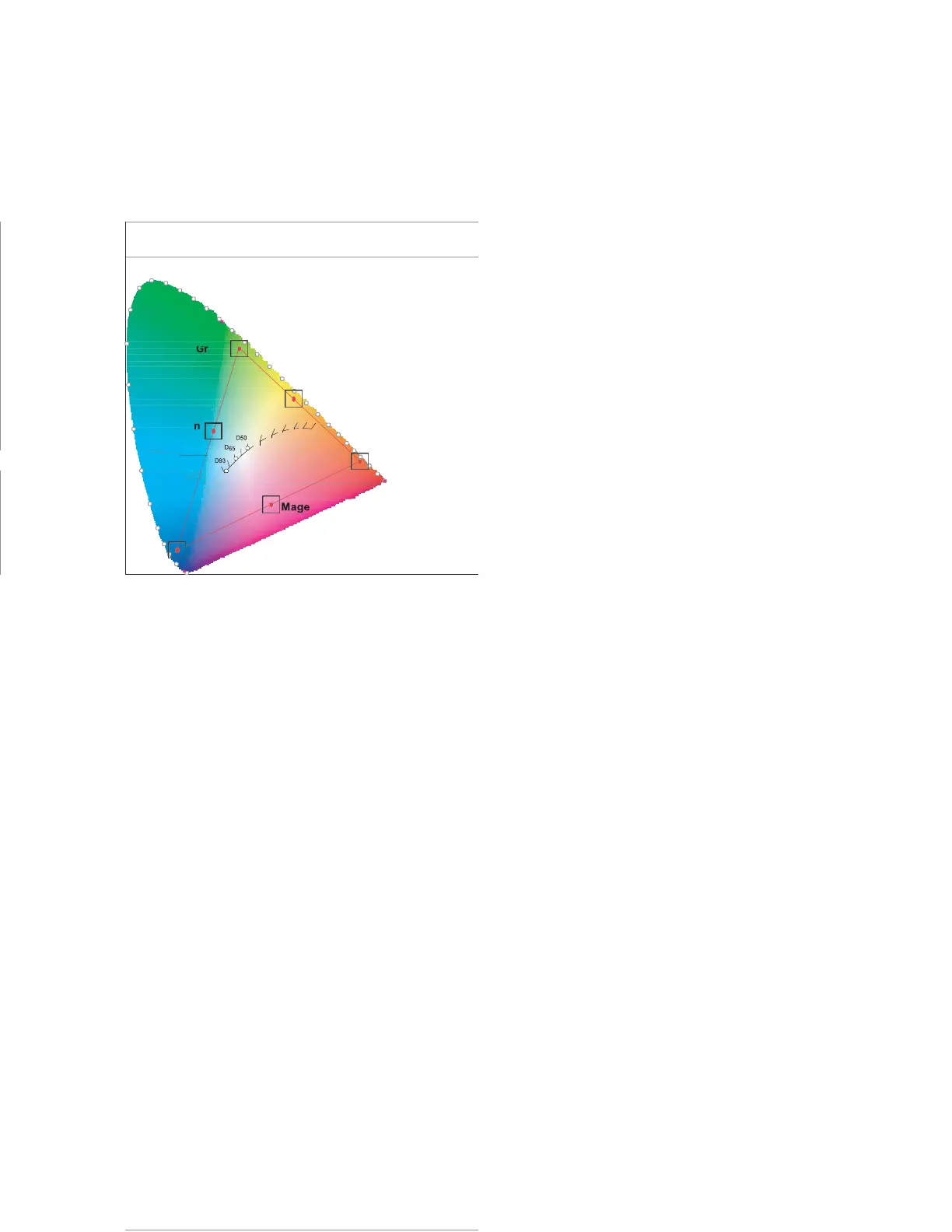
What are “colour points?” A “colour point” is an x/ y coordinate pair that defines a colour’s location on the standard
CIE chromaticity graph, shown in Figure 4-6. (CIE stands for “Commission Internationale de l’Éclairage”
(International Commission on Illumination), the organisation responsible for colour measurement and
management standards.)
1.0
0.9
0.8
0.7
0.6
0.5
0.4
0.3
0.2
0.1
0.0
0.0 0.1 0.2 0.3 0.4 0.5 0.6 0.7 0.8 0.9 x 1.0
Figure 4-6. CIE 1931 Chromaticity Diagram
Select a value of from 3200K to 9600K. Higher settings produce a “bluer” picture; lower ones impart a reddish hue to the
image. To select a custom colour temperature, select User and set the Gain and Offset as described below.
•
Gain: Use the Gain controls to correct colour imbalances in the bright areas of the image. A good way to do this
is to use a test pattern consisting mostly of solid white areas, such as an 80 IRE “window” pattern. If the white
areas contain traces of red, green or blue, decrease the Gain for that colour.
•
Offset: Use the Offset controls to correct colour imbalances in the dark areas of the image. A good way to do
this is to use a test pattern consisting mostly of dark grey areas, such as a 30 IRE “window” pattern. If the grey
areas contain traces of red, green or blue, decrease the Offset for that colour.
HDMI RGB Colour Range: Select an RGB range for the HDMI input, from one of the options: Auto, Full or
Limited.
Aspect Ratio: To change the aspect ratio (size and shape) of the displayed image, select Aspect Ratio from the Video
Settings menu and press ENTER. Select the appropriate aspect ratio for the type of program material being viewed.
Note that some aspect ratios are unavailable and / or not useful with certain types of source material. The optimal setting
depends on a number of factors, such as:
•
The aspect ratio of the source material, as broadcast or encoded on the playback medium.
•
The “display type” (16:9 or 4:3) and output resolution settings at the source component. Most modern DVD/BD
players and set-top boxes have such controls.
•
Viewer preference (original aspect ratio with “black bars,” or a full-screen presentation with some distortion or
cropping).



 To Next Page