Phone: 1-803.358.3600 • Fax: 1-803.358.3636
100 Innovation Place • Lexington SC 29072 USA
avtecinc.com • sales@avtecinc.com
Creating a Line Pad for a NENA Endpoint
1. In Scout Manager, on the Configuration tab, select the Screens folder.
2.
Double-click the screen where you want to place the line pad for the NENA device.
The screen editor displays in the workspace.
3. Drag the line pad from the Toolbox tab onto the screen.
4.
Select the line pad and configure control-level property settings in the Line Pad Properties pane as necessary.
By default, the Properties pane displays to the right of the Scout Manager screen editor. If the pane does not
display, select View > Properties to display it.
IMPORTANT
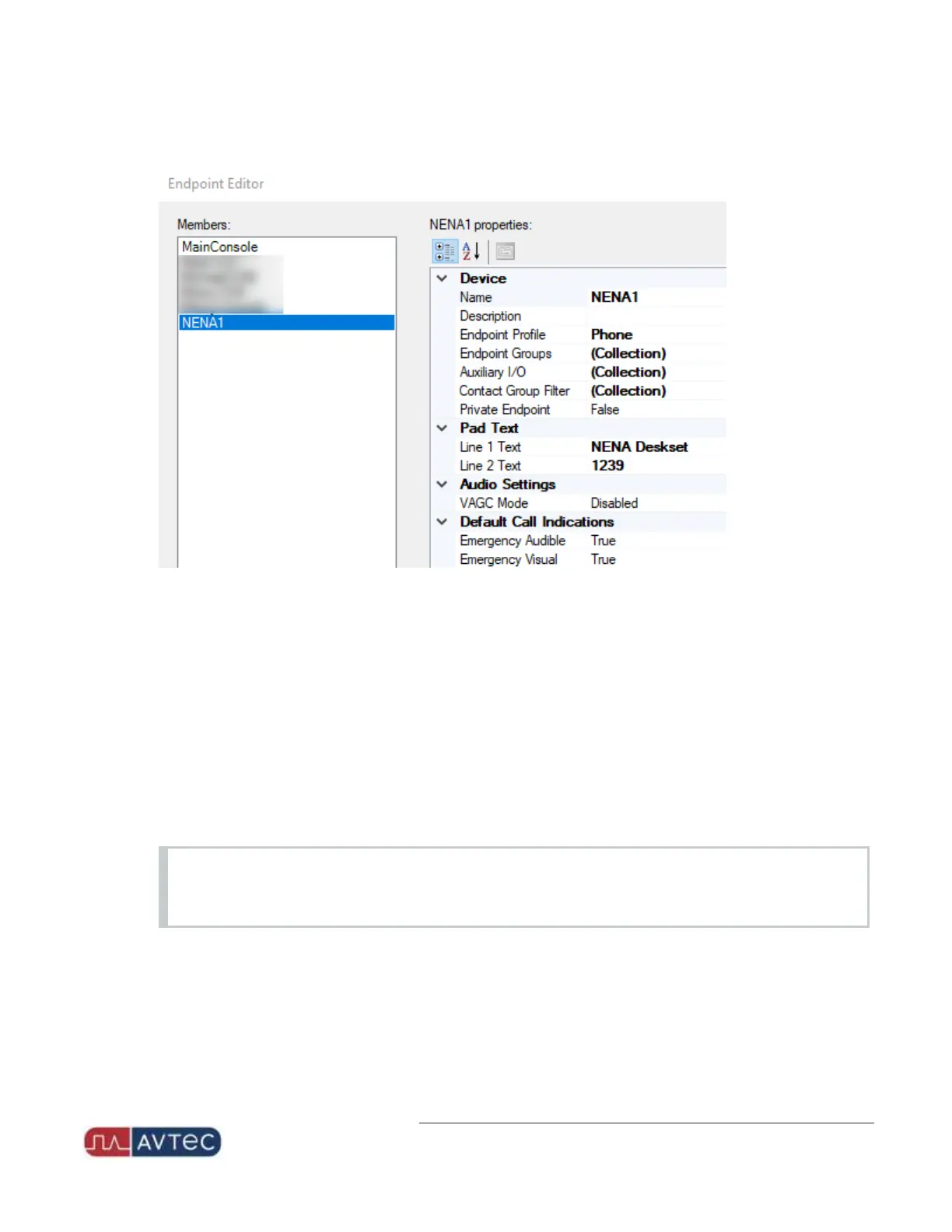
Pay special attention to assign the line pad to the deskset endpoint in the Behavior section of the
Properties pane. The remaining properties relate to how the line pad displays on the screen.
5.
To name the line pad, in the Behavior section, select the dropdown in the Name field.
The dropdown displays available endpoints.
11
Avtec USB NENA Jack Box Configuration Guide | October 2021 | Revision 9


 To Next Page