English
15
8 Direct monitoring
When recording an audio signal into your audio software, there is often a slight delay before it reaches the
outputs. This delay, called latency, is caused by the computer processing time required to process the audio.
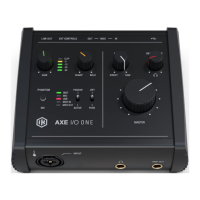
Since this delay can be distracting, AXE I/O ONE provides a direct monitoring path from the inputs to the
outputs, and this is controlled by the Monitor knob. The Monitor knob allows you to blend your input signals
with the playback streams from your computer. This allows you to monitor your input signal with zero latency. If
the knob is positioned at 12 o’clock, the input signal and the playback stream will be equally balanced. Turning
the knob to the left will increase the level of the direct signal; turning to the right will increase the level of the
playback stream from the DAW.
WhenMonitorissettoDIRECT,makesurethatanysoftwaremonitoringoptionfordirect(or“lowlatency”)
monitoringisdisabled.Disablinglowlatencymonitoringprevents“double-monitoring”ofinputaudiosignals
whenusingtheDirectMonitoringfeature.When“double-monitoring”occurs,therewillbeanincreaseinvolume
andanundesirable“phasing”sound.Formoredetailsaboutitsmonitoringfunction,refertothedocumentation
for your audio software.
IMPORTANT: Always makes sure MONITOR knob is set fully clockwise (DAW) when connecting microphones.
This is because even if your DAW is not running or does not have an active recording track, loud feedback could
occur if your monitoring level is high and the MONITOR knob is set on DIRECT.
9 Control software
This is a macOS and Windows software program that controls all the functions of the AXE I/O ONE, also
providing additional information about the status of AXE I/O ONE. From this software you will have extended
and comprehensive metering, have control over output levels, sample rate, MIDI setup, and other important AXE
I/O ONE options.
To open the Control software:
After installing the Control software on your computer (refer to Section 2.1 of this manual for more information)
click the icon on your desktop to launch it.
Assuming that your AXE I/O ONE interface is connected to your computer with the USB cable, the Control
software GUI (Graphical User Interface) will appear as shown on the sections below. The green State ‘LED’ at
the screen top left should be illuminated; this confirms that the AXE I/O ONE interface is connected and properly
working.


 To Next Page