AXEM Technology
11 rue Auguste Perret, 94042 Créteil, FRANCE – info@axemtec.com – +33 (0)1 41 94 11 85 – www.axemtec.com
Siret : 45071140300045 - APE : 4652Z - RCS : CRETEIL 450711403 - N° TVA intracom : FR05450711403 - Capital : 500 000,00 €
30/46
4 Usage of Main functions
Click on the bottom of the standby screen, pop up the main menu. As shown below:
Slide left or right to view more menu items, press the Back button to close the main menu, you can
directly click the application or widget to switch applications and widgets options. You can also put
your own favorite features onto the desktop, keep pressing the icon you want to move and hold, after
a brief vibration to move, drag it to where you want the icon placement can let go (Note: during
operation to keep pressing the icon and not loose).
4.1 RFID HF (High Frequency) Card identification
Reading recognizable RFID HF card, support for common standards such as: ISO 14443-3A, ISO
15693. Can write to the card, and provides a convenient data storage function, can be used for future
viewing.
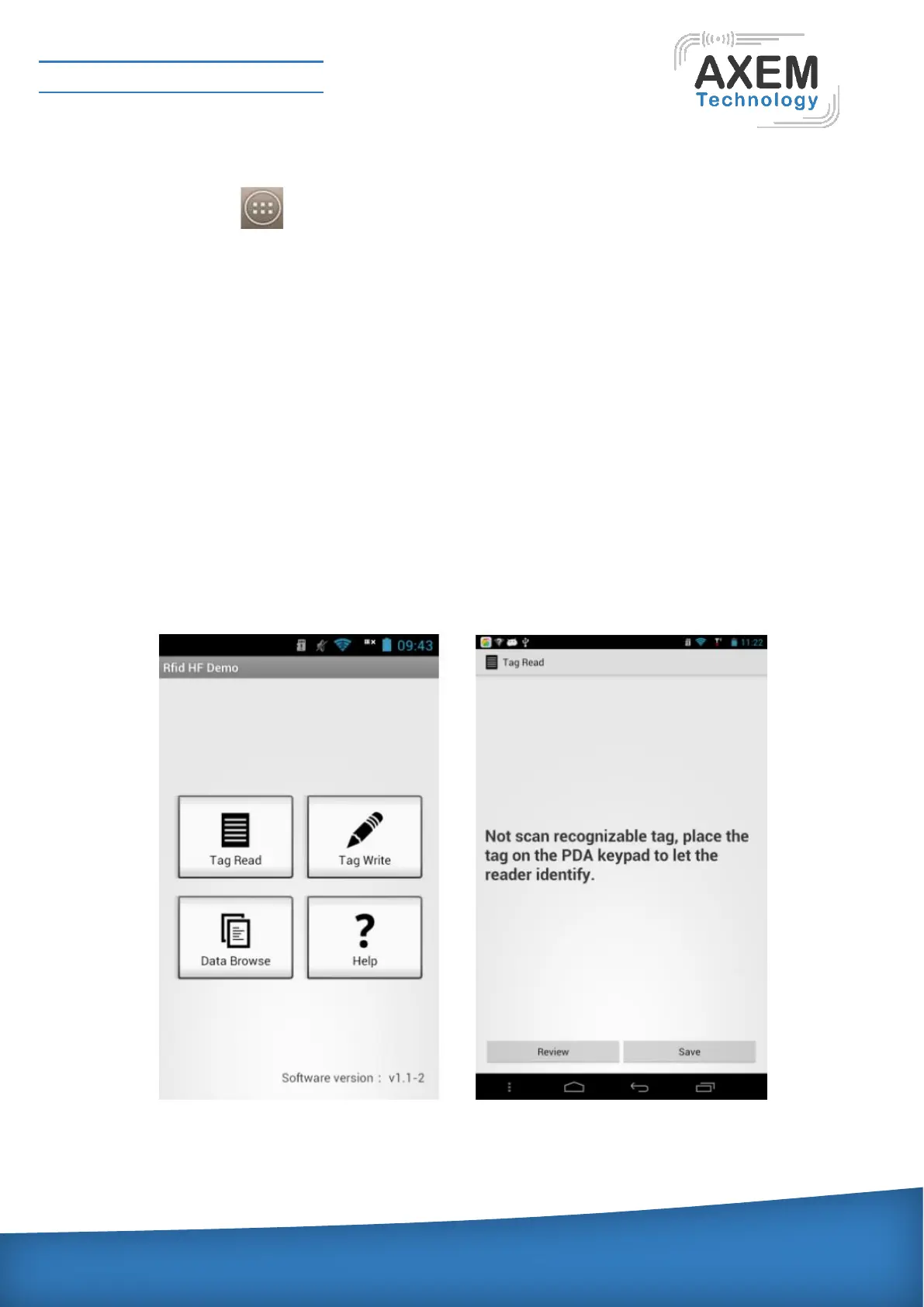
Label Read: After installing RFID HF demo equipment, you should put the card under the equipment
RFID scanning area. If the device recognizes the card, reader option will automatically pop up; select
the read and write button, Interface as shown below:
Click on "Review" to visit the software all card information current scanned; clicking "Save" will
permanently save the current scan results to the database for viewing the record.



 To Next Page