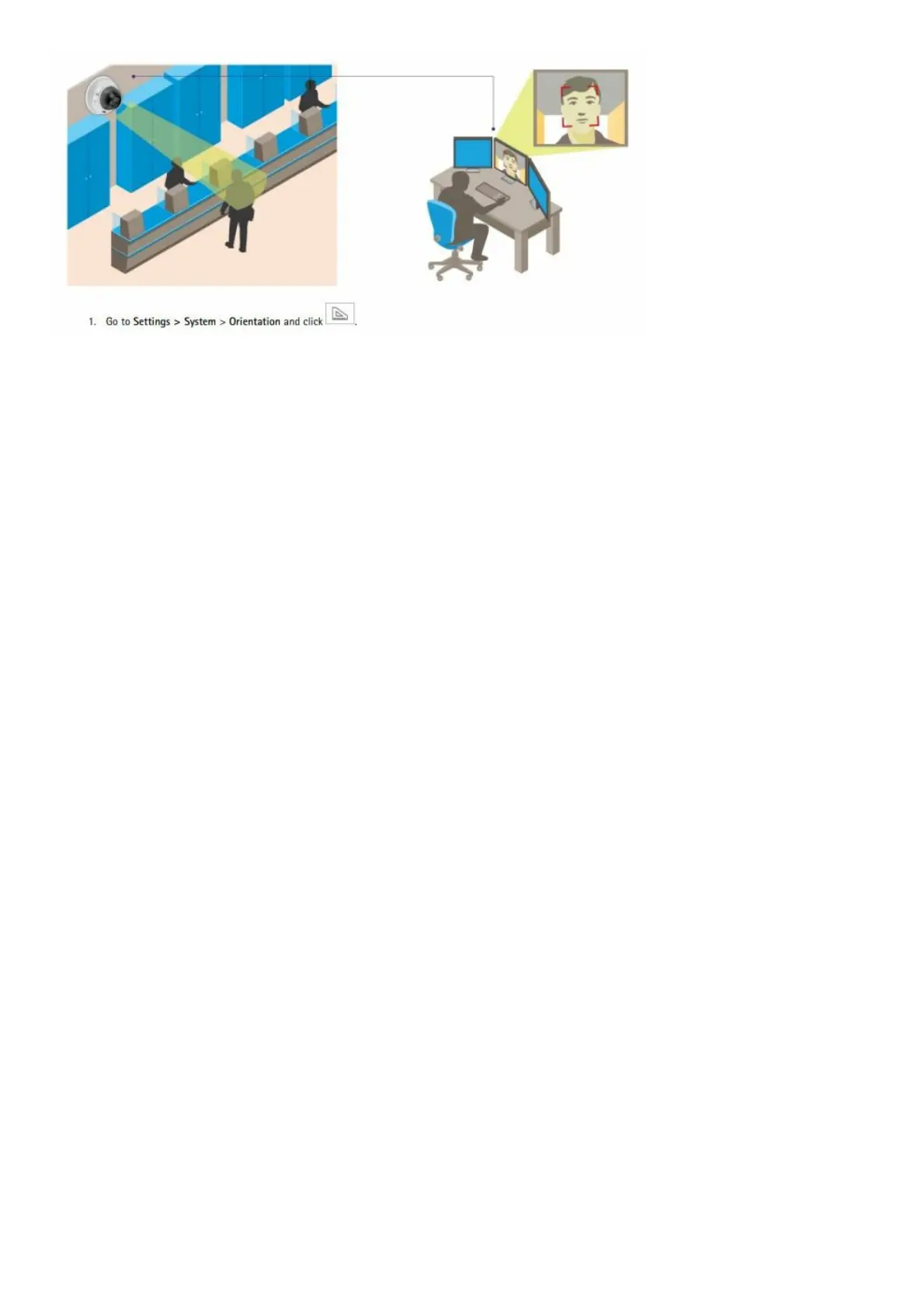
2. Adjust the size and placement of the rectangle in the camera’s live view around the area of interest, for example
where the faces of passing persons are expected to appear. You can then see the number of pixels represented by
the sides of the rectangle.
Note
You can use an object of a known size in the view as a reference to decide how much resolution is needed for
recognition.
Privacy masks
How to hide parts of the image with privacy masks
What is a privacy mask?
A privacy mask is a user-defined area that prevents users from viewing a part of the monitored area. In the video
stream, privacy masks appear as blocks of solid color.
The privacy mask is relative to the pan, tilt, and zoom coordinates, so regardless of where you point the camera, the
privacy mask covers the same place or object.
You’ll see the privacy mask on all snapshots, recorded videos, and live streams. You can use the VAPIX®
application programming interface (API) to turn off the privacy masks.
Important
Using multiple privacy masks may affect the product’s performance.
How to create a privacy mask
To create a privacy mask, go to Settings > Privacy mask.
Overlays
About overlays
Overlays are superimposed over the video stream. They are used to provide extra information during recordings,
such as a timestamp, or during product installation and configuration.
How to show a text overlay when the camera detects motion
This example explains how to display the text “Motion detected” when the camera detects motion: Make sure the
AXIS Video Motion Detection application is running:
1. Go to Settings > Apps > AXIS Video Motion Detection.
2. Start the application if it is not already running.
3. Make sure you have set up the application according to your needs.
Add the overlay text:
4. Go to Settings > Overlay.
5. Enter #D in the text field.
6. Choose alignment, text size, and appearance.
7. Include the text overlay. Create an action rule:
8. Go to System > Events > Action rules.
9. Create an action rule with AXIS Video Motion Detection as a trigger.
10. From the list of actions, select Overlay text.
11. Type “Motion detected”. 12. Set the duration.


 To Next Page