This example explains how to connect a speaker to the camera and set it up to play a warning message when the
camera detects motion in a restricted area.
Required hardware
• Active speaker with built-in amplifier and connecting wires
NOTICE
Make sure the camera is disconnected from power before making the connections. Reconnect to power after
connecting the wires.
Physical connection
1. Connect the audio wire from the speaker to the AUDIO OUT pin on the camera. See Product overview on page
3.
2. Connect the grounding wire from the speaker to the GND AUDIO OUT pin on the camera. See Product
overview on page 3.
Add the audio clip to the camera
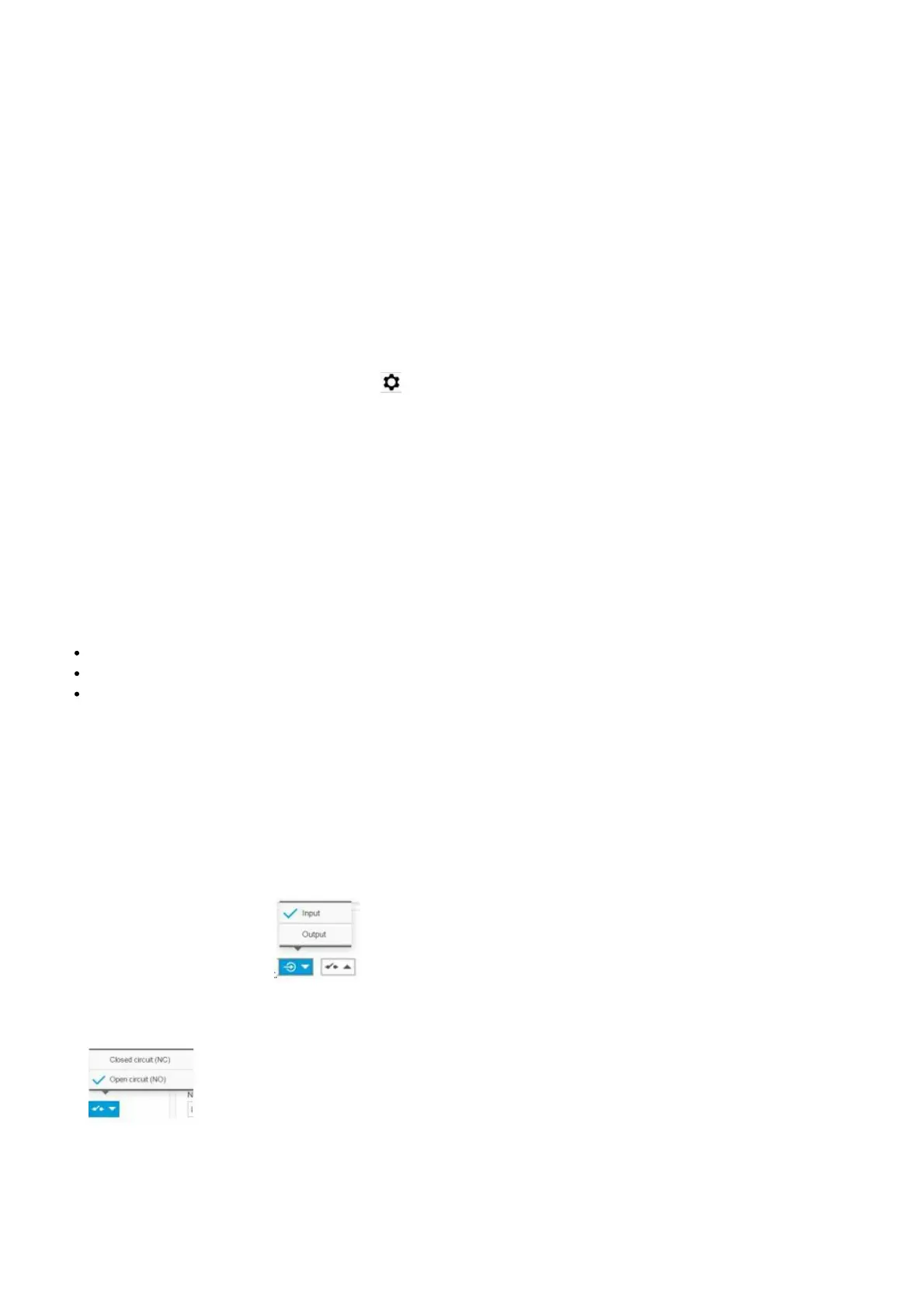
1. Go to Settings > Audio > Output and click to add your audio clip.
2. Click Add.
3. Select Upload under Add Audio Clip Options.
4. Browse to locate the audio clip and click Upload.
To trigger the camera to play the audio clip when it detects motion, create an action rule in the camera’s webpage.
How to direct the camera and open the lock to a gate when someone is nearby
This example explains how to direct the camera and open a gate when someone wants to enter during the daytime.
This is done by connecting a PIR detector to the product’s input port and a switch relay to the product’s output port.
Required hardware
Mounted PIR detector
Switch relay connected to the gate lock, in this case, the switch is normally closed (NC)
Connecting wires
Physical connection
1. Connect the wires from the PIR detector to the input pin, see I/O connector on page 20.
2. Connect the wires from the switch to the output pin, see I/O connector on page 20
Configure I/O ports
You need to connect the switch relay to the camera in the camera’s webpage. First, configure the I/O ports: Set the
PIR detector to an input port
1. Go to System > I/O ports.
2. Select Input in the Port 1 drop-down list.
3. Give the input module a descriptive name, for example, “PIR detector”.
4. To trigger an event whenever the PIR detector senses motion, select Open circuit in the drop-down list.
Set the switch relay to an output port
1. Go to System > I/O ports.


 To Next Page