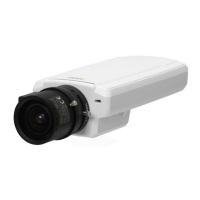
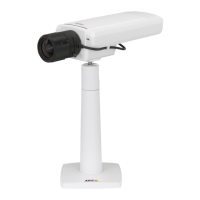
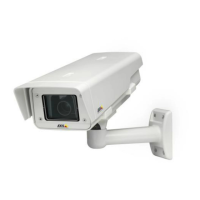
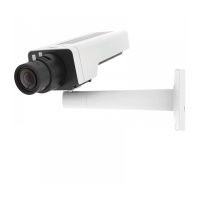
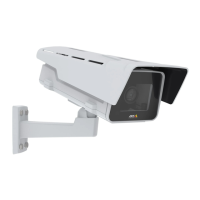
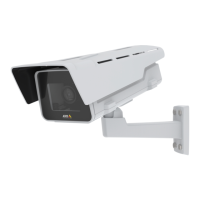
AXIS P1343-E Network Camera
Video and Audio
Day/Night
The IR cut filter prevents infrared (IR) light fro m reaching the image sensor. In poor lighting conditions, for example at night, or
when using an IR lamp, set the IR cut filter to Off. This increases light sens itivity and allows the product to “see” infrared light. The
image is shown in black and white when the IR cut filter is off.
If using automatic Exposure control,settheIRcutfilter to Auto to automatically switch between On and Off accordingtothe
lighting conditions.
Iris configuration
Iris configuration shows the current configured iris type. Do not change the iris configuration unless the lens has been changed,
see Replacing the lens, on page 9 .
Iris adjustment
Select Enable automatic iris a djustment to a utomatically compensate for changing light conditions. This option is not available
if a fixed iris is used.
View Area
A view area is a cropped part of the full view. The vi ew area is treated a s a video source in Live View and has its ow n video
stream and PTZ s ettings.
To enable a view area, go to Video & Audio > Camera Settings and select Enable View Area.
When setting up a view area it is recomme nde d that the video stream re solution is the same size as or smaller than the view a re a
size. Setting the video stream resolution larger than the vie w area size implies digita lly scaled up video aft er sensor capture,
requiring more bandwidth without adding image information.
To configure the view area:
1. Go to Video & Audio > View Area.
2. Select an Aspect ratio and a Video stream resolution.
3. A new view area covers the whole image. Usethemousetomoveandresizetheviewarea.
4. Select Enable PTZ to enable digital PTZ for the view area.
5. Click Save to save the settings.
To modify the view area, modify the settings as required . Click Save.
Tip:
• The PTZ functionality is useful during installation of the Axis product. Use a view area to crop o ut a specificpartof
the full view.
Overlay
Overlays
can be used to provide extra information and are superimposed over the v ideo image. With overlay text it is possible to
include date and time or view the current bit rate as overlay text.
To include the current bit rate as overlay text go to Video & Audio > Video Stream > Overlay Settings,selecttheInclude text check
box option, and enter t he code #b in the field. See the online help
for supported formats.
Overlay image
An overlay image can be used to provide ex tra i n forma t ion, or to mask a part of the video image.
23



 To Next Page