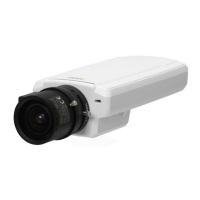
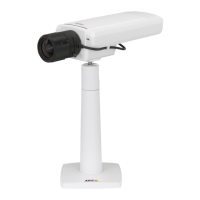
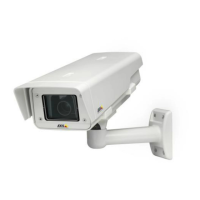
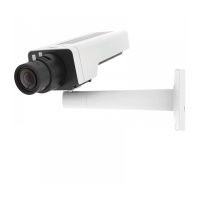
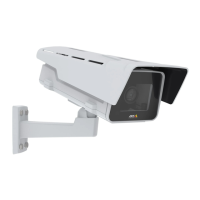
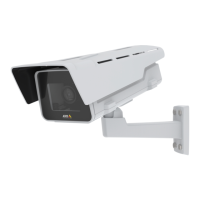
AXIS P1343-E Network Camera
Events
5. Set one of the available p re-programmed time intervals from the Schedule drop-down list.
6. Select Send Notification from the Type drop-down list.
7. Select where to send the notification from the Recipient drop-down list.
To add ad ditional criteria, select the Additional conditions option. Add and select the desired options as described above. To prevent
an action from being triggered repeatedly, a W ait at least time can be set. Enter the time in hours, minutes and seconds, during
which the trigger s hould be ignored before the action r ule can be activated again.
To copy, modify o r remove an action rule, select the action rule in the Action Rule List and click Copy, Modify or Remove.
The recording Duration of some actions can be set to include time immediately before and after the event. Select Pre-trigger time
and/or Post-trigger time and e nter the number of seconds. When W hile the rule is active is enabled and the action is triggered
again during the post-trigger time, the recording time will be extended with another post-trigger time period.
For more information, see the online help
.
Recipients
Recipients receive image files and notification messages. A recipient can be an FTP, HTTP or TCP server, a network share or an email
address. TCP servers are used for notification messages o nly.
To add a recipient:
1. Go to Events > Recipients and c lick Add.
2. Enter a descriptive name
3. Select a recip ient Type.
4. Enter the information needed for the recipient type.
5. Click Test to test the connection to t he recipient.
6. Click OK.
Schedules
An action can be set up to occur on a schedule. Included in the list are predefined schedules for after and during office hours,
weekdays or weekends.
To create a new schedule:
1. Go to Events > Schedules and click Add.
2. Enter a descriptive name and the information needed for a daily, weekly, monthly or yearly schedule.
3. Click OK.
To use the schedule in an Action Rule, select the schedule from the Schedule drop-down list i n the Action Rule Setup page.
Recurrences
An action can be s et up to recur a specific number of times in a period, for example every 2 minutes or every hour.
To set up a recurrence:
1. Go to Events > Recurrences and click Add.
2. Enter a de scriptive name and recurrence pattern.
36



 To Next Page