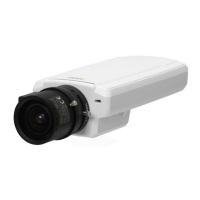
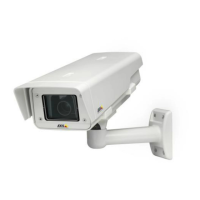
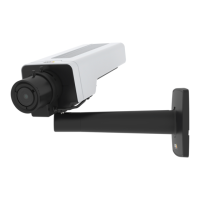
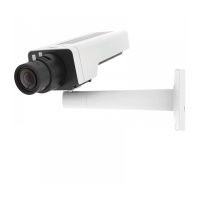
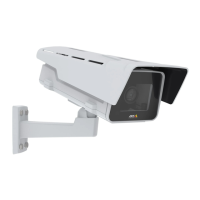
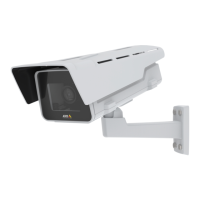
AXIS P1343-E Network Camera
Hardware overview
LED indicators
LED
Color
Indication
Green
Steady for connection to a 100 MBit/s network. Flashes for network activity.
Amber
Steady for connection to a 10 MBit/s network. Flashes for network a ctivity.
Network
Unlit No network connection.
Green Steady green for normal operation.
Amber
Steady during startup and when restoring settings.
Status
Red
Slow flash for failed upgrade.
Green
Normal operation.
Power
Amber
Flashes green/amber during firmware upgrade.
LED
Color
Indication
Green
Normal operation.
Housing
(fan and
heater)
Flashing
green
Single flash: Heater error
Double flash: Fan error
Triple flash: General error
Alarm events will be triggered through the camera’s i nput port.
See the User Manual, available on the CD provided with this product, or from www.axis.com
Contact your Axis reseller for information about spare parts and troubleshooting.
Note
• The Status LED can be configured to be unlit during normal operation. To configure, go to Setup > System Options >
Ports & Devices > LED. See the online help for more information.
• The Status LED can be configured to fl ash while an event is active.
• The Status LED can be configured to flash f or identifying the unit. This can be done under Setup > System Options >
Maintenance.
Status LED when using Focus Assistant
Status Color
Indication
Green
Focus Assistant is enabled
The lens is optima lly adj u ste d
Amber The camera has been moved, or an object has been inserted in front of the lens. Exit and
restart the Focus Assistant.
Thelensislessop
timally adjusted
Red The camera has been moved, or an object has been inserted in front of the lens. Exit and
restart the Focus Assistant.
The lens is poorly adjusted
Replacing the lens
It is possible to use optional lenses for the Axis product.
To replace the lens:
1. Disconnect the iris cable.
2. Unscrew the standard lens.
9



 To Next Page