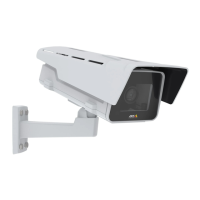
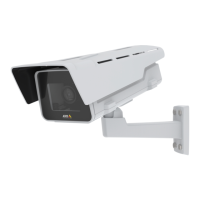
AXIS P1343-E Network Camera
Troubleshooting
Troubleshooting
Checking the firmware
Firmware is software that dete rmines the functi onality of network devices. One of your first actions when troubleshooting a problem
should be to check the current firmware version. The latest version may contain a correction that fixes your particular problem. The
current firmware version in the Axis product is displayed in the page Setup > Basic Setup and in Setup > About.
Upgrading the firm ware
When you upgrade the product with the latest firmware from Axis w ebsite, the product receives the late st functionality available.
Always read the upgrade instructions and release notes available with each new release, before upgrading the firmwa re.
To upgrade, follow these instructions:
1. Save the firmware file to your computer. The latest version of the firmware is available fre e o f charge from Axis website
at www.axis.com/techsup
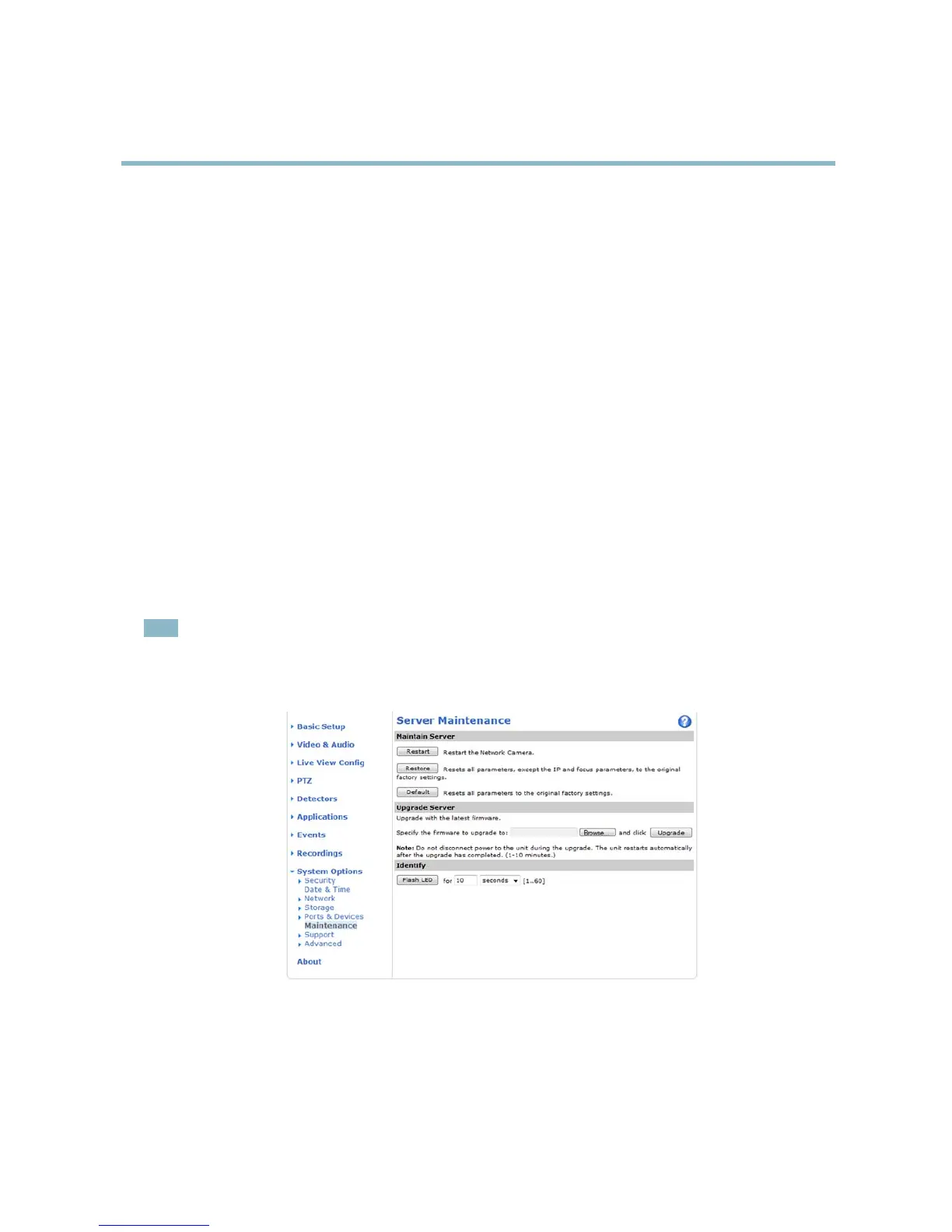
2. Go to Setup > System Options > Maintenance in the products w eb pages.
3. Under Upgrade Server, click Browse and locate the file on your computer. Click Upgrade.
After starting the upgrade process, always wait at least 5–10 minutes before restarting the product, even if you suspect the
upgrade has failed.
AXIS Camera Management can be used for multiple upgrades. See www.axis.com for more information.
Note
• Your dealer reserves the right to charge for any repair attributable to faulty upgrade by the user.
•Preconfigured and customized settings are saved when the fi rmware is upgraded (providing the fea tures are available in
the new firmware) although this is not guaranteed b y Axis Communications AB.
Emergency recovery procedure
If pow
er or network connection is lost during the upgrade, the process fails and the product becomes unresponsive. Flashing red Status
indicator indicates a failed upgrade. To recover the product, follow the steps below. The serial number is found on the product’s label.
1. In UNIX/Linux, type t he following from the command line:
51



 To Next Page