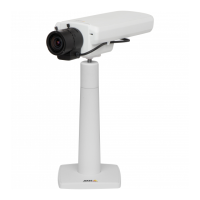
AXISP1365-ENetworkCamera
SetUptheProduct
FocusAssistant
Note
•Theviewinfrontofthecamerashouldnotbechangedduringfocusadjustment(steps5and6).Ifthecameraismoved,orif
angerorotherobjectisplacedinfrontofthelens,steps3-7willhavetoberepeated.
•Ifmovementsinfrontofthecameracannotbeavoided,theFocusAssistantshouldnotbeused.
•IfthecameraismountedsothattheFunctionbuttoncannotbeaccessed,youcanstillusetheFocusAssistant.Followthe
instructionsbelowbutmountthecameraafterstep4,pressingtheFunctionbuttoninsteadandskipstep7.
TofocusyournetworkcamerausingtheFocusAssistant,followsteps1-3underAdjustFocusonpage20beforeyoustartwiththe
stepsbelow.SeeHardwareOverviewonpage7.
1.Mountorplacethecamerasothatitcannotbemoved.
2.Loosenthezoompullerbyturningitcounter-clockwise.Movethepullertosetthezoomlevel.Re-tightenthezoompuller.
3.Setthecameratoitsextremedistant-focuspositionbylooseningthefocuspullerandturningthelensfullyclockwise.
4.PressandquicklyreleasetheFunctionbutton.WhentheStatusLEDashesgreen,theFocusAssistantisenabled.
IftheStatusLEDasheseitherredoramberbeforeyouareabletoadjustthelens,skiptostep7toexittheFocusAssistant
andrepeatsteps3-7.Seethenotesabove.SeeStatusLEDBehaviorforFocusAssistantonpage10.
5.Gentlyturnthelenscounter-clockwiseuntilitstops.
6.Turnthelensslowlyclockwiseuntilthestatusindicatorashesgreenoramber(notred).
7.Retightenthefocuspuller.
8.OpentheLiveViewpageinthewebbrowserandcheckthequalityoftheimage.
9.OntheFocuspage,clickFine-tunefocusautomaticallyandwaituntilautomaticnetuningiscompleted.
10.ClickEnableiris.Ifthebuttonisinactivetheirisisalreadyenabled.
11.Ifneeded,makefurtheradjustmentsundertheAdvancedtab.Seetheonlinehelpformoreinformation.
21


 To Next Page