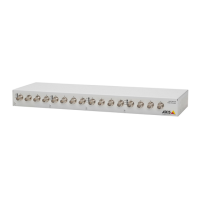
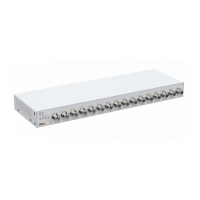
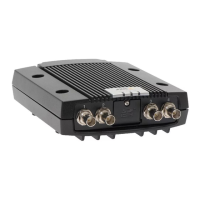
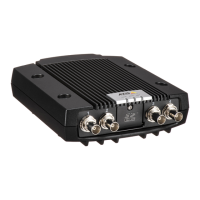
Page 10 AXIS P7214/P7210 Installation Guide
AXIS IP Utility - single camera/small installation
AXIS IP Utility automatically discovers and displays Axis devices on your network. The application
can also be used to manually assign a static IP address.
Note that the computer running AXIS IP Utility must be on the same network segment (physical
subnet) as the AXIS P7214/P7210.
Automatic discovery
1. Check that the AXIS P7214/P7210 is connected to the network and that power has been
applied.
2. Start AXIS IP Utility.
3. When the AXIS P7214/P7210 appears in the window, double-click it to open its home page.
AXIS P7210 appears in the window with one entry for each of its 4 groups of video inputs.
4. See page 12 for instructions on how to assign the password.
Set the IP address manually (optional)
1. Acquire an unused IP address on the same network segment as your computer.
2. Select AXIS P7214 or one of the AXIS P7210 in the list.
3. Click the button Assign new IP address to selected device and enter the IP address.
4. Click the Assign button and follow the instructions.
5. Click the Home Page button to access the video encoder’s web pages.
6. See page 12 for instructions on how to set the password.


 To Next Page
 Loading...