Axon Fleet 3 Camera System User Manual
Axon Enterprise, Inc. Page 6 of 19
Getting to Know Your Axon Fleet 3 Camera System
Although your Axon Fleet 3 system can be configured for automated transfer from
BUFFERING to EVENT mode under the right conditions, the Dual-View Camera still includes
physical controls to enable recording. The Dual-View Camera will also provide visual and
audible notification of the Axon Fleet 3 system’s state of operation.
Note: Many of the features activated by the buttons below also can be activated with the
Axon Fleet Dashboard application. See the Axon Fleet Dashboard Manual for more
information.
Axon Fleet 3 Dual-View Camera Hardware
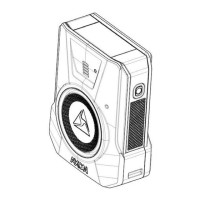
The following images show the different components on the Axon Fleet 3 Dual-View camera,
Model AX1031.
Axon Fleet 3 Dual-View Camera front view and Swivel Ball Joint
Swivel ball joint – Attaches camera to camera mount. The camera supports pan, tilt, and
roll. If you want to restrict any of those you can tighten the set screws to support this. For
most installations Axon recommends tightening the roll and tilt screws and leaving the pan


 To Next Page
 Loading...

