Manual 2100-685
Page 3 of 18
INSTALLATION
NOTE: Follow the instructions provided in the latest version of CompleteStat Controller Installation, Operation &
Quick Start Guide 2100-684 before using this manual.
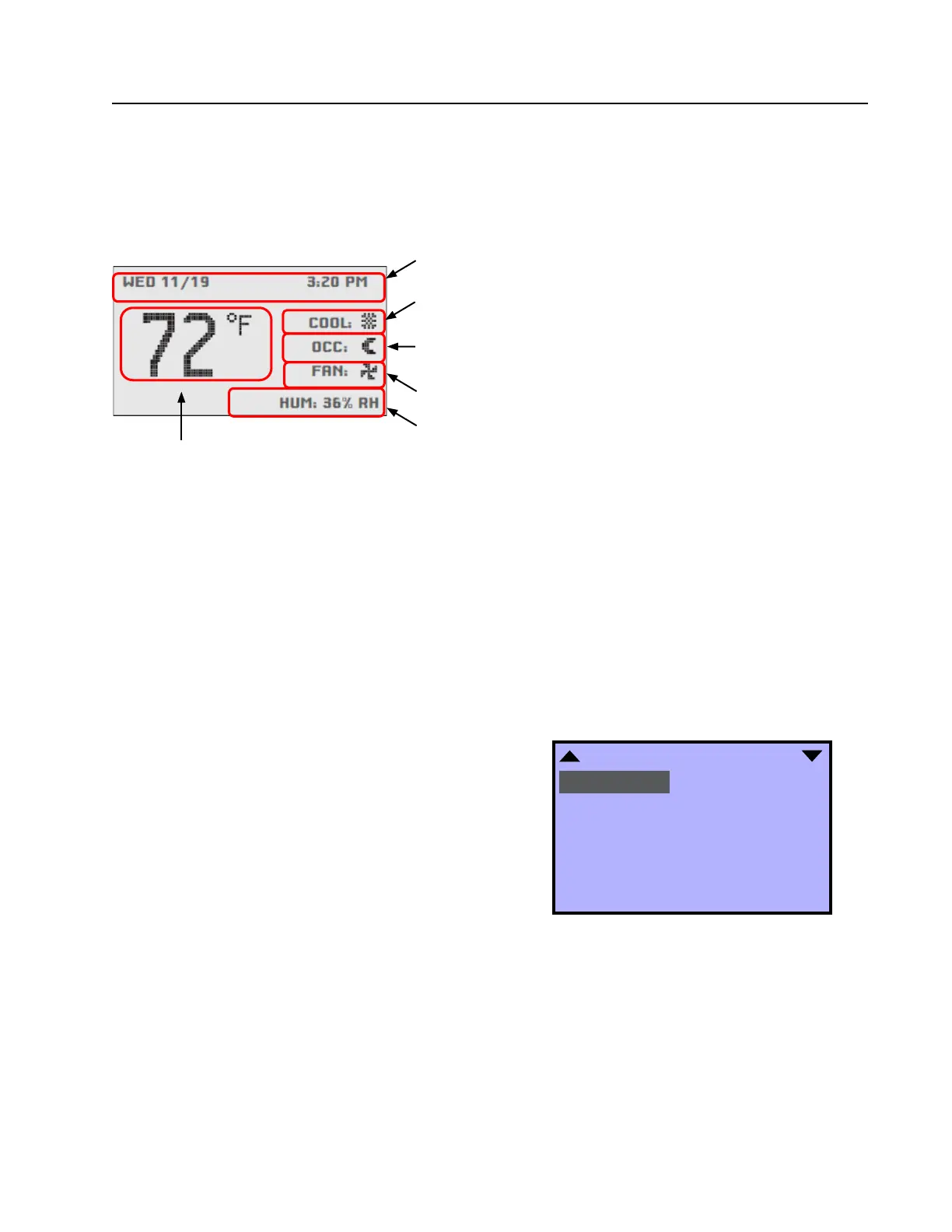
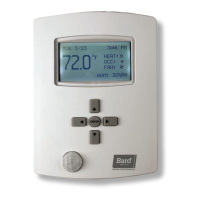
Date and Time Line: Reference or scheduling purposes
Current Operation Status: Cooling, Heating, Dehum or Off status, indicated
by “snowflake” icon, “heat waves” icon, “raindrop” icon or “OFF”.
Occupancy Status: Occupied, Unoccupied, or Temporary Override option,
indicated by “sun” icon, “moon” icon or “OVR” letters, respectively.
Fan Status: Fan blade icon, animated when “ON”.
System Information Rotation Values: “HUM” shows relative humidity (%),
“CO2” shows ppm of carbon dioxide (if equipped with sensor) and “OAT”
shows outdoor air temperature degrees F or C (if equipped with sensor).
Current Room Temperature
Degrees F or Degrees C
NOTE: Rotation Values will change approximately every
5 seconds. These values can be customized if desired.
NOTE: By default, controller will read temperature in
Fahrenheit. To temporarily toggle reading to Celcius,
press the ENTER button for more than 2 seconds. The
new scale will stay in place until repeated, or until
the controller is restarted. For permanent change, see
page 5 of the latest version of CompleteStat Controller
Installation, Operation & Quick Start Guide 2100-684.
Navigate the menus and change settings by pressing a
combination of the four arrow buttons and the ENTER
button.
• ENTER button to select and/or exit value editing
• UP or DOWN button to move among entries
• RIGHT or LEFT button to move among value fields
• LEFT button to return to the home screen
NOTE: If the screen includes up and down arrows in
the upper corners (as shown in Figure 2), additional
choices can be found by continuing to press the UP or
DOWN buttons.
NOTE: Access to the Main Menu, setpoint adjust and
system/occupancy/fan override may require a password.
Display Options
To adjust backlight, change rotation values and/or
activate temperature tenths:
1. Press RIGHT button to access Main Menu screen.
2. Press DOWN button to scroll to TECHNICIAN.
Press ENTER button.
3.
Controller will ask for password. Press UP and RIGHT
buttons to enter ‘BARD’. Press ENTER button.
4. Press DOWN button to scroll to ADVANCED. Press
ENTER button.
5. Press DOWN button to scroll to USER INTERFACE.
Press ENTER button.
6. Press DOWN button to highlight entry of choice
(see Figure 2).
FIGURE 1
CompleteStat Home Screen Features
USER INTERFACE
BACKLIGHT: AUTO
CONTRAST: 40
DISPLAY BLANKING: NO
INACTIVITY (SECS): 120
ROTATION VALUES
SHOW TEMP TENTHS: NO
SHOW TIME & DATE: YES
FIGURE 2
User Interface (Display) Options
7. Press ENTER button to select entry of choice.
8. Press UP or DOWN buttons to toggle between
adjustments (asterisks indicate default values):
• BACKLIGHT – Choose between AUTO* (turns
off after inactivity period), or ON
• CONTRAST – 30-63 (40*)
• DISPLAY BLANKING – YES/NO*
• INACTIVITY (SECS) – 5-600 (60*)


 To Next Page