Manual 2100-685
Page 7 of 18
Adjusting Standby Conditions
Users may opt to adjust temperature offset, change
time length of waiting period or even disable standby
feature.
To change standby conditions parameters from the
Home screen:
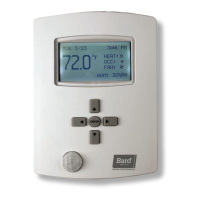
1. Press RIGHT button to access Main Menu screen.
2. Press DOWN button to scroll to TECHNICIAN.
Press ENTER button.
3.
Controller will ask for password. Press UP and RIGHT
buttons to enter ‘BARD’. Press ENTER button.
4. Press ENTER button again to select APPLICATION.
5. Press DOWN button to scroll to ADDITIONAL
SETUP. Press ENTER button.
6. Press DOWN button to scroll to MOTION SENSOR.
Press ENTER button.
7. Press DOWN button to highlight the following
choices (see Figure 7):
• STATE (OCCUPIED/UNOCCUPIED)
• STANDBY (ENABLE/DISABLE)
• OFFSET (specify °F offset span)
• TIMER (specify time length of waiting period)
8.
Press ENTER button to select appropriate selection.
9. Press UP or DOWN buttons to enter specific
parameters.
10. Press ENTER button to save changes.
11. Press LEFT button to return to the Home screen.
Temporary Temperature Override
Any changes to temperature from the Home screen
will result in a temporary “override” which will last for
a programmable length of time (factory default is 10
minutes).
To change temperatures temporarily from the Home
screen:
1. Press UP or DOWN buttons to access the current
temperature setpoint. “SET” will appear under
temperature reading.
2. Press UP or DOWN button again to adjust current
temperature setpoint to desired temperature.
3. Press ENTER or LEFT or RIGHT buttons to select
temporary setpoint change. OVR will appear in the
Occupancy Status line.
NOTE: If no “schedule” has been previously entered,
OVR will already be displayed in the “Occupancy
Status” line.
To cancel temporary override from Home screen:
1. Press LEFT button to highlight Current Operation
Status line.
2. Press DOWN button to highlight Occupancy Status
line. Press ENTER button.
3. Press ENTER button again to select OCC
OVERRIDE and highlight ON (see Figure 8).
4. Press UP or DOWN button to change from ON to
OFF.
5. Press ENTER button to select override
cancellation.
6. Press LEFT button to return to the Home screen.
NOTE: If no “schedule” has been entered, temperature
override will cancel, but OVR will remain in Occupancy
Status line.
Adjusting Temporary Temperature Override Time Length
To adjust temporary override time length from Home
screen:
1. Press RIGHT button to access Main Menu screen.
2. Press ENTER button to select SYSTEM.
3. Press DOWN button to scroll to OCC OVRIDE (see
Figue 9 on page 8). Press ENTER button.
4. Press UP or DOWN buttons to adjust time (5
minute increments, maximum 2000 minutes).
5. Press ENTER button to select new override time
limit.
MOTION SENSOR
STATE: OCCUPIED
STANDBY: ENABLE
~ OFFSET: 4°F
~ TIMER (MINS): 60
FIGURE 7
Adjusting Standby Conditions
OCCUPANCY OVERRIDE
OCC OVERRIDE: ON
FIGURE 8
Cancelling Temporary Override


 To Next Page