– 28 –
UPDATE OVEN APPLICATION FIRMWARE VIA USB DRIVE
1. Switch the oven into the off mode.
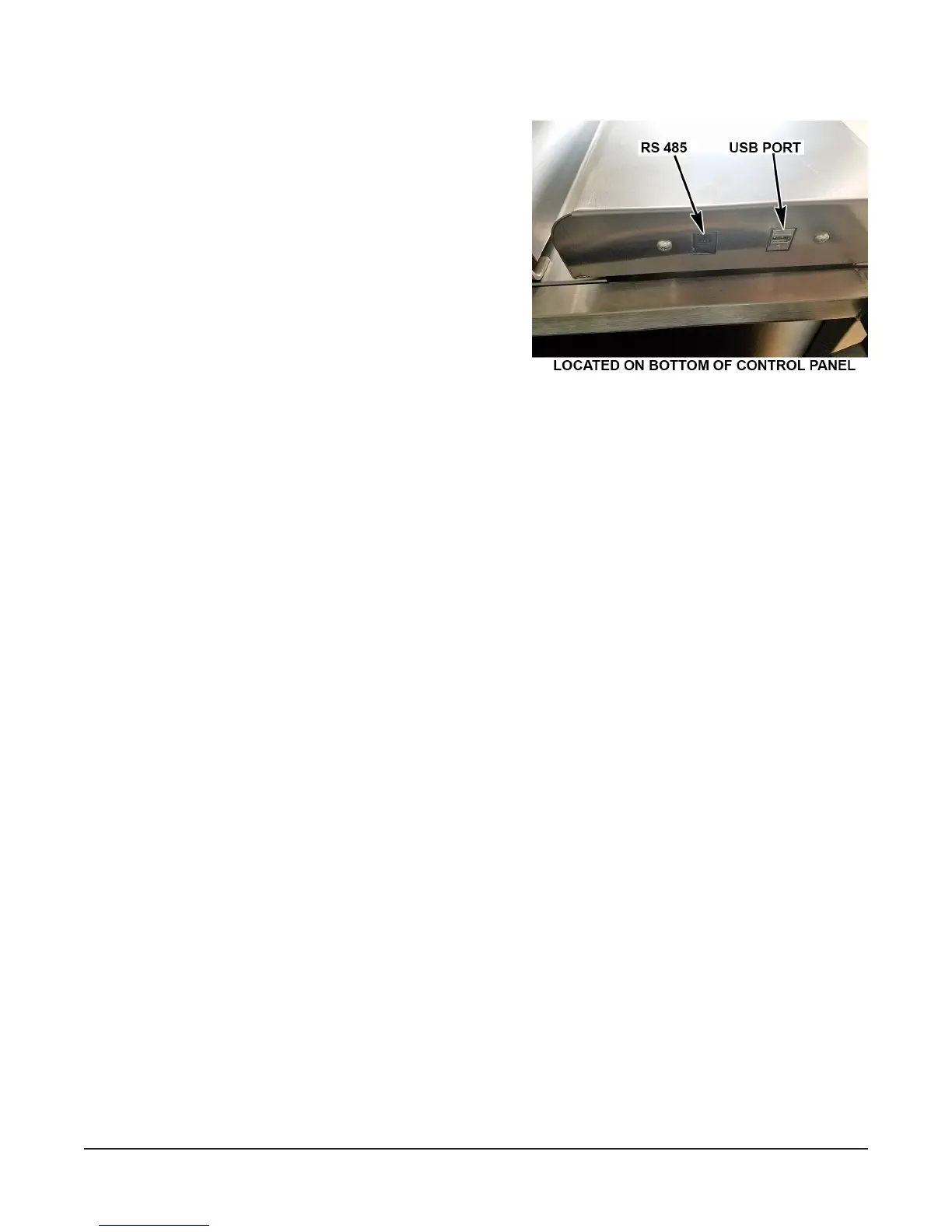
2. Insert the ash drive that contains the rmware
binary le [FIRMWARE.BIN] into the USB socket.
3. Press and hold the STOP button then press and
hold the POWER ON OFF button, keep holding
both buttons until word ‘UPdt’ [Update] is displayed
in the clock eld.
When the rmware has nished being updated the display
will show UPDt-done [Update done]. You need to power
off the oven, wait 10 seconds and then power on the oven
to make it operable again.
If no binary le, Firmware or Recipe, is found, the display
will show:
'UPdt-FAIL-USb-Err' [Update fail USB error]
To correct this error, insert the correct USB drive and power off and then power on the oven.


 To Next Page