93
NAVIGATION MODE >>>
> D
> GB
> F
> I
> PL
An x now appears next to the speaker
symbol . With pressing the
button, you can make the volume control
elements disappear.
> Press again the speaker symbol in the
preview area to mute the voice again.
The bar display disappears again
automatically after a short while if no
button is pressed.
Map zooming
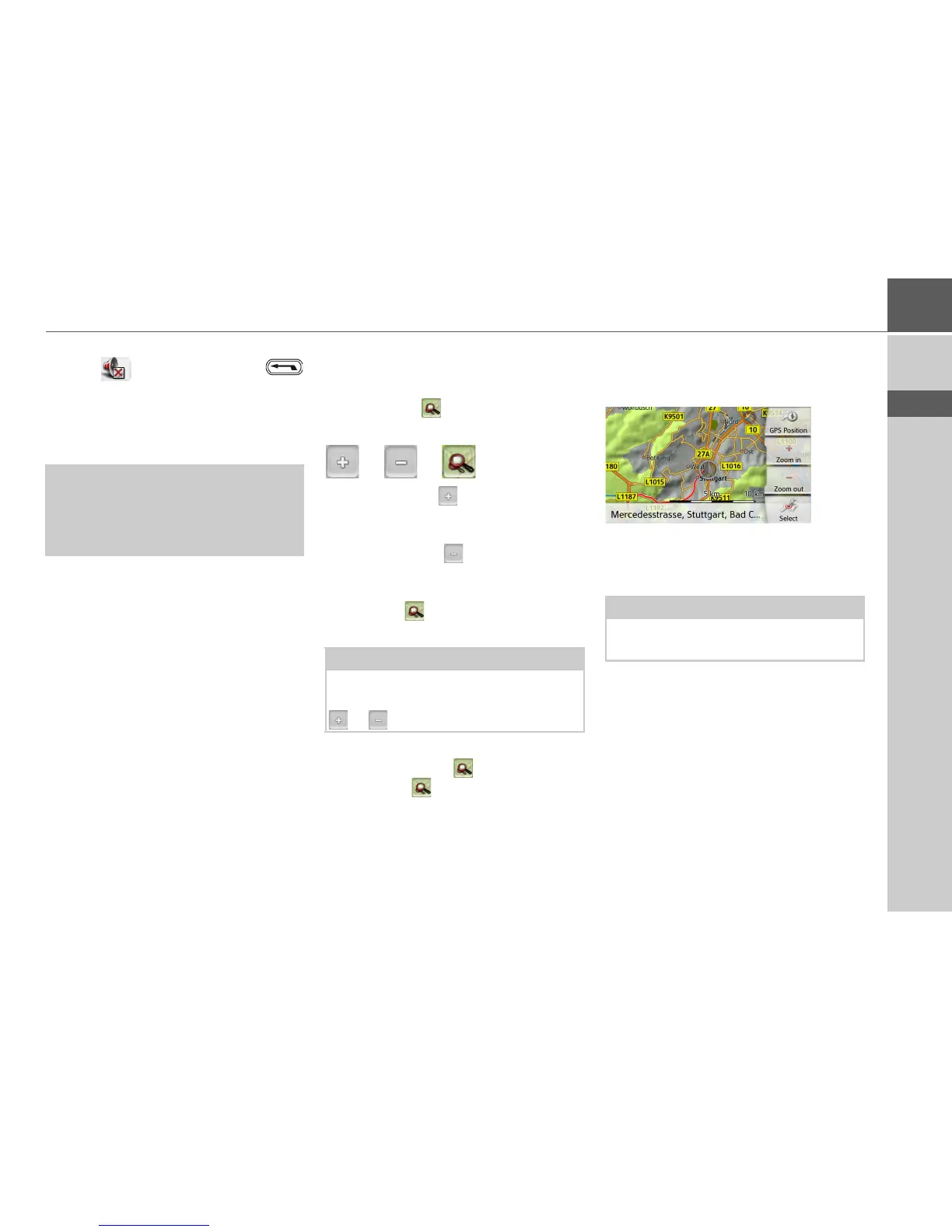
The map can be zoomed into in steps by
using the zoom buttons.
> Press the button. The zoom
buttons are displayed.
> Press zoom in to "zoom in on the
map" and therefore to get closer to the
details displayed.
> Press zoom out to "zoom out from
the map” and therefore to obtain a
larger overview.
> Press the button to switch back to
the set zoom step after a change.
If you change the zoom step, a button
with two red lenses are displayed.
> Press the button to restore the
originally set zoom step.
Moving the map
You can move the map to any point.
> To do this, press the map briefly.
> Then press any point on the map and
move it in the required direction.
The map is then moved accordingly.
You can also select a point as a destina-
tion as described under "Selecting a des-
tination from the map" on page 56.
¤ Warning!
Always adjust the volume so that you
can still hear any ambient noise while
driving.
Note:
The zoom steps are altered in quick
succession by pressing and holding the
or button.
Note:
By pressing the
GPS Position you can
display your current position again.




 To Next Page