34 35Quick Start Guide
GRIND
OVERVIEW
The following details show some of the basic
operation of the sequencer. You can create a short
pattern of 2 or 3 steps, before trying more complex
patterns. Adjust a single parameter at a time, such
as gate length, ratchet, accent, glide, rest, tie, or
swing, and then listen to its eect during playback.
It will help to choose a simple setting for the
synthesizer, and no modulation of the VCO or VCF.
RECORDING A SIMPLE PATTERN
1. Press SHIFT and <KYBD to select the
keyboardmode.
2. Initialise the current pattern by pressing SHIFT,
RESET, and PATTERN at the same time. This will
delete any previous steps of the current pattern.
3. Press REC, and the STEP 1 switch LED will begin
ashing, indicating this is the current step
about to be added and edited. (If you cannot
select REC, then repeat step 1.)
4. Press any note on the GRIND keyboard, or a
rest as shown below. The <KYBD and STEP>
switches can be used to change the octave. ,
indicated by 8 OCTAVE / LOCATION LEDs lit red.
5. To enter a rest instead of a note, press the
HOLD/REST switch. When a rest is added, the
LOCATOR LED 8 will light.
6. Press further notes. The next STEP switch LED will
be ashing after each note or rest has been added.
7. The gate length of a step can be adjusted using
the TEMPO/GATE LENGTH control. The LOCATOR
LEDs will turn red, showing the gate length
from 1 to 8. If set to 8, this creates a tie with the
next step. If the next step is the same note, this
creates a longer note, as the 2 steps are tied.
8. To create a “Ratchet,” hold SHIFT, and turn
the GLIDE control. The locator LEDs will show
the number of ratchets from 1 to 4, in yellow.
Forexample, with a setting of 4, the single
step is split into 4 equal parts. When a ratchet
is applied, the LOCATION LED 6 will light.
9. To turn the GLIDE on for a step, turn up the
GLIDE control. To turn o, turn it all the
way down. When GLIDE is on for a step,
theLOCATION LED 5 will light.
10. To increase the brightness or accent, pressthe
RESET/ ACCENT switch. When an accent is
applied, the LOCATION LED 7 will light.
11. Press REC when you have nished creating
the pattern. It is not saved yet, but it can be
played back. Caution: Do not turn o the unit,
or create a new pattern, or the current unsaved
pattern will be lost.
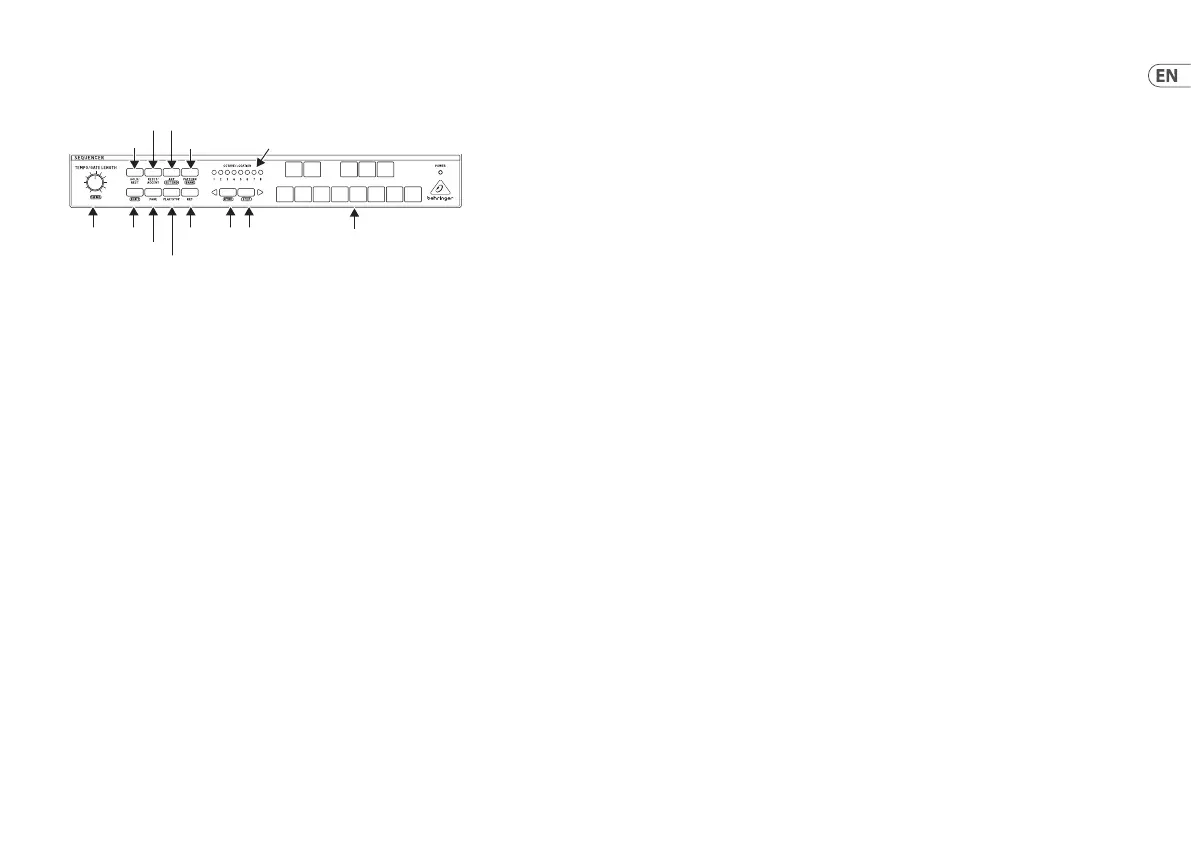
GRIND Sequencer Operation
HOLD/REST
SHIFT KYBD/STEP
OCTAVE UP/DOWN
PATTERN/BANK
REC
OCTAVE and
LOCATION LEDS
STEP SWITCHES 1 TO 8
and 13-key keyboard
RESET/ACCENT
PAGE
ARP/SET END
TEMPO/
GATE LENGTH/
PLAYING A PATTERN
1. Press PLAY/STOP to listen to the
currentpattern.
2. If you decide not to save it, you can repeat
the recording steps above to record a new
pattern. Alternatively, press PATTERN and
RESET to recall the currently saved pattern,
and discard any changes.
3. If you decide to save the pattern, you must
follow the “SAVING A PATTERN” procedure
shown below, or it will not remain in memory
if a new pattern is begun, or the power is
turned o.
4. To create a SWING for this pattern, hold
SHIFT and adjust the TEMPO/GATE LENGTH
control. In the center position, no swing is
applied, ifturned down, only the o-beats
will play, and if all the way up, only the
on-beats will play. The SWING setting for the
pattern is saved when the pattern is saved as
shownbelow.
5. While playing a pattern, you can:
Press HOLD/REST to hold the current step.
Press RESET/ACCENT to return to step 1.
Press SHIFT and any STEP, and you can edit
the gate length, rest, accent, ratchet, glide
but not note. Press SHIFT and the same STEP
again to exit step edit. (If playback is paused,
thesame operation can edit the note as well.
Press PAGE to view the pattern page from
1 to4. Press SHIFT and PAGE to return to
automatic page turning.
Press SHIFT and ARP/SETEND and a STEP to
change the sequence end step.
PLAY/STOP to pause playback.
6. Press PLAY/STOP.
7. Note: To play in reverse, press SHIFT and
PLAY/S TOP.
SAVING A PATTERN
1. Press and hold SHIFT + PLAY/STOP for 2
seconds until the LOCATOR LED of the current
pattern number begins to ash green slowly.
2. Press a STEP switch 1 to 8 to select the new
desired pattern number.
3. Press PATTERN + STEP switch 1 to 8 to select
the desired bank number.
4. Press SHIFT + REC to save the pattern and exit
the save mode.
RECALLING A SAVED PATTERN
1. Press and hold PATTERN. The LOCATION LED
will show the current pattern number. Use
the <KYBD or STEP> switches to move up and
down through the patterns 1 to 8, or press a
STEP switch 1 to 8. You can also do this while a
pattern is playing.
2. Press and hold SHIFT and PATTERN. The
LOCATION LED will show the current bank
number. Use the <KYBD or STEP> switches to
move up and down through the banks 1 to 8,
or press a STEP switch 1 to 8. You can also do
this while a pattern is playing.
3. Press PLAY/STOP to play back the
currentpattern.
4. During playback, the LOCATION LEDs will
show the current page of the pattern (1 to
4), and the STEP Switch LEDs will show the
steps moving.
LIVE PERFORMANCE
During playback, temporary adjustments can be
made as follows. (None of these are saved with
the pattern.)


 To Next Page
 Loading...