NOTE:InHDMImode;someresolutionsaresupportedwhenaDVItoHDMIconvertercablefromaPCis
used. Only 16:9, 4:3, 14:9(somedefinitions)aresupportedaspictureformat.
High Definition – Full HD
Yourtelevisioncanreceivehigh-definitionsignals(HDTV).Youcanconnecttheinput
sources(HDTVset-topboxorHDTVDVDplayer)tothe(HDMI)socket(digitalHDTV
signal).ThisensuresthatyoucanviewdigitalHDTVprograms,eveniftheyarecopy-
protected(HDCPHigh-DefinitionCopyProtection).
Rear view of the TV
Audio connection
Picture connection
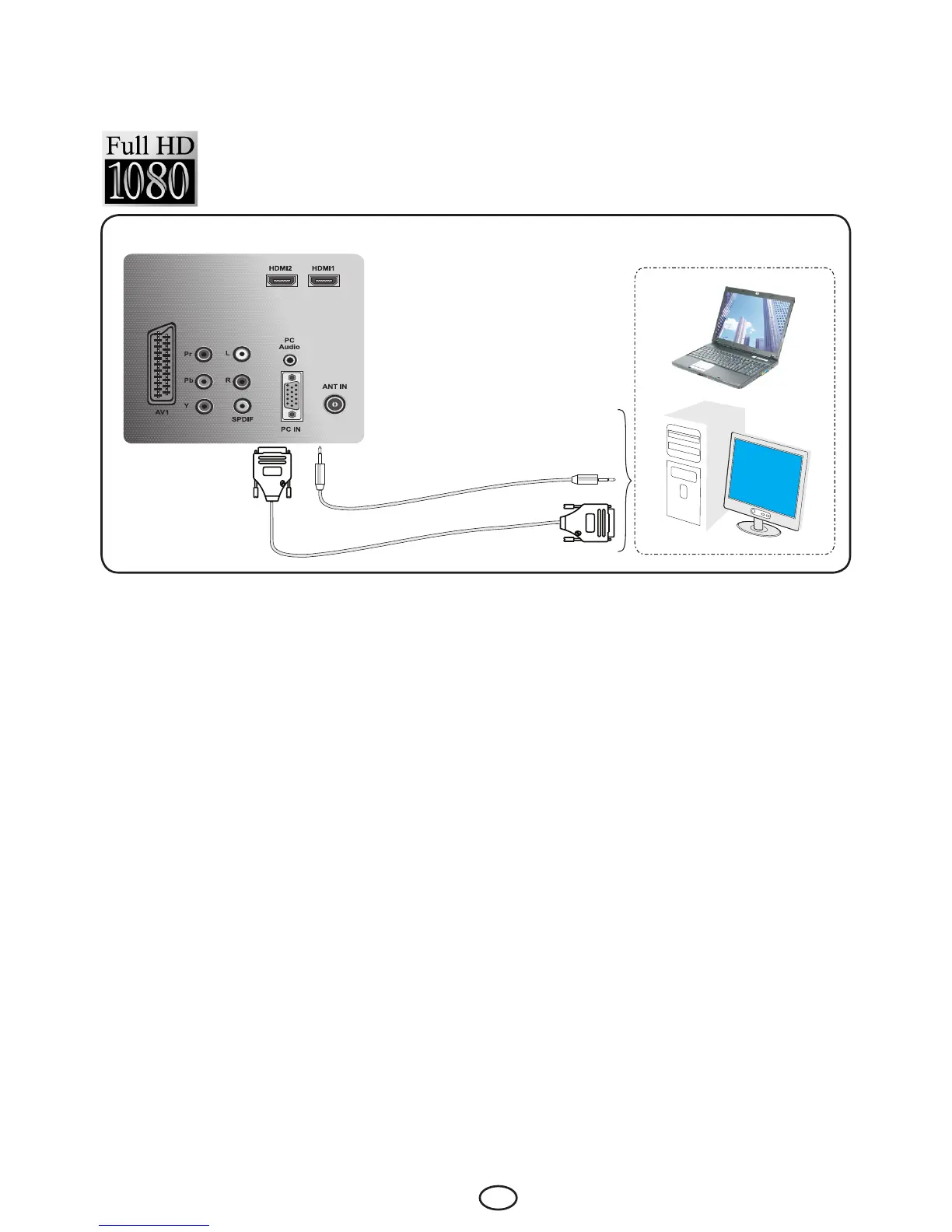
9.6.1-PC Connection:
ConnecttheD-Sub15connectortothePC-INsocketatthebackofyourtelevisionbyusingan
appropriatecable(notsuppliedwithyourtelevision).Again,byusinganappropriatecable,connectthe
audio output of your PC to the PC AUDIO-IN at the back of your television to listen to sounds from your
PC and you can adjust the volume level of your source by using VOL+/VOL- buttons.
9.6.2-Transition to the PC mode
ForyourLCD-TVtoswitchtothemonitor(PC)mode,presstheAV button on your remote control. The
SOURCE menu appears on the screen. Select PC by pressing the up/down movement buttons and
press the OK button.
9.6.3-PC Access Setting
Enter into the SETUP menu from the Main Menu by pressing the MbuttoninthePCmode.Inorderto
make the necessary settings in this menu, you can select the headings with the up-down buttons on
your remote control to perform the following monitor-related settings.
9.6-PC connection



 To Next Page