16030_P75445-A_F5D8233-4_V3000_N_RTR_MNL_961008.doc
Page 82 of 108
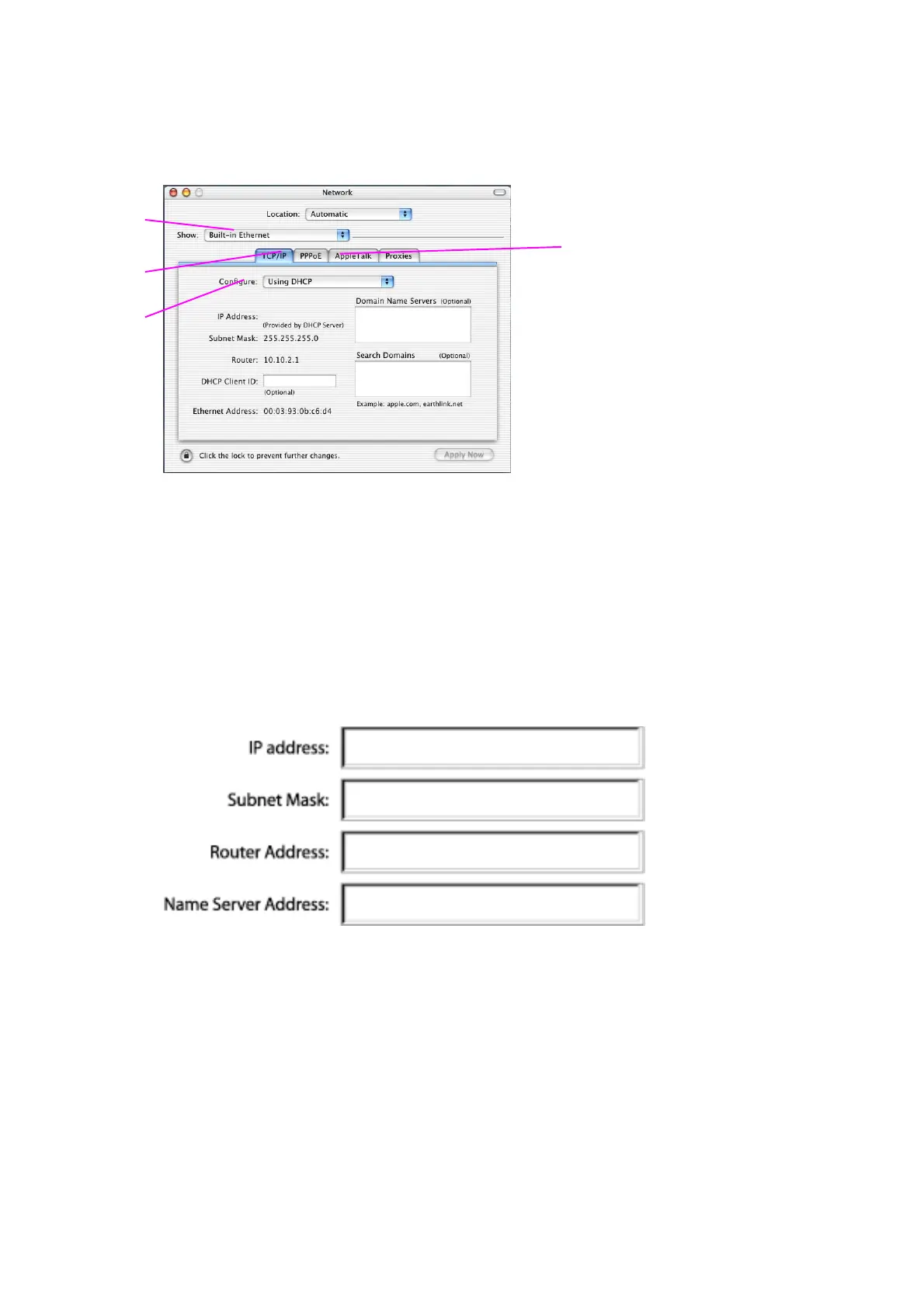
3. Select “Built-in Ethernet” (2) next to “Show” in the Network menu.
[xxxxxxx] [use current image]
[keep]
4. Select the “TCP/IP” tab (3). Next to “Configure” (4), you should see
“Manually” or “Using DHCP”. If you do not, check the PPPoE tab (5) to make
sure that “Connect using PPPoE” is NOT selected. If it is, you will need to
configure your Router for a PPPoE connection type using your user name
and password.
5. If “Manually” is selected, your Router will need to be set up for a static IP
connection type. Write the address information in the table below. You will
need to enter this information into the Router.
[MacOS9 chart.tif] [use current image] [keep]
6. If not already selected, select “Using DHCP” next to “Configure” (4), then click
“Apply Now”.
Your network settings are now configured for use with the Router.
(2)
(3)
(4)
(5)


 To Next Page