EasyManua.ls Logo

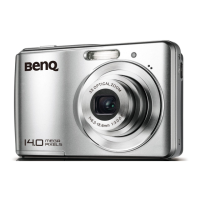
BenQ C1450 Series - User Manual

BenQ C1450 Series
45 pages
Print Icon
To Next Page IconTo Next Page
Loading...
Welcome
C1450 Series
Digital Camera
User Manual
C1450_UM - EN.book Page 1 Monday, July 19, 2010 4:06 PM

Table of Contents

Questions and Answers

  • P
    perrymitchellJul 30, 2025
    Why won't my BenQ Digital Camera take a picture when I press the shutter button?
    • C
      Christopher MedinaJul 30, 2025
      Your BenQ Digital Camera might not take a picture for several reasons: * The battery may be low, in which case you should replace it. * The camera might not be in Capture mode; switch to Capture mode. * You may not have pressed the shutter button all the way down; ensure you press it completely. * The memory card or internal memory may be full; either load a new card or delete unwanted files. * The flash might be recharging; wait until the flash mode icon stops flashing. * The camera may not recognize the memory card; format the memory card.
  • A
    Andrew HuynhAug 3, 2025
    What to do if I can't download images from my BenQ C1450 to my computer?
    • M
      Megan MahoneyAug 3, 2025
      If you cannot download images from your BenQ Digital Camera, it might be due to the following reasons: * Your computer's hard disk may not have enough free space. Ensure that the hard disk has enough space for running Windows and that the drive for loading image files has free space equal to or greater than the memory card in the camera. * The camera may not be receiving power. Replace the battery.
  • M
    Monique EricksonAug 8, 2025
    Why is my BenQ C1450 Digital Camera image too bright or too dark?
    • R
      Regina AguilarAug 8, 2025
      If your BenQ Digital Camera images are consistently too bright or too dark, it's likely that the exposure is either excessive or inadequate. To fix this, reset the exposure compensation.
  • P
    Patricia TuckerAug 11, 2025
    What to do if I cannot format a memory card in my BenQ C1450 Digital Camera?
    • E
      erica44Aug 11, 2025
      If you're unable to format the memory card in your BenQ Digital Camera, consider these possibilities: * The memory card might be write-protected. Remove the write protection. * The memory card may have reached the end of its life. Try inserting a new memory card.
  • M
    Michelle ContrerasAug 16, 2025
    Why are my BenQ C1450 photos dark even when the flash goes off?
    • D
      Debbie SwansonAug 16, 2025
      If your BenQ Digital Camera photos are dark even when the flash fires, it could be because the subject is too far away. Try getting closer to the subject before taking the picture.
  • A
    Anthony BaileyAug 21, 2025
    How to enable the flash on my BenQ Digital Camera?
    • A
      Angela WrightAug 21, 2025
      If the flash on your BenQ Digital Camera is not firing or recharging, the camera flash may be turned off. Set the flash to Auto Flash.
  • D
    doylecharlesAug 26, 2025
    What to do if I cannot print images from my BenQ Digital Camera using PictBridge?
    • A
      Angela FordAug 26, 2025
      If you are unable to print images with PictBridge-compliant printers, the camera may have been connected to the printer while powered off. Connect the camera to the printer, turn on the camera, and then select Printer.

Summary

Safety Warning and Precautions

For Your Safety

Describes precautions for safe use.

Camera Care Instructions

Provides maintenance and cleaning instructions.

Operating Environment

Usage Conditions and Temperature Effects

Lists environments to avoid and temperature effects.

Preparing the Camera for Use

Battery Installation and Removal

Guides for battery installation and removal.

Camera Preparation and Controls

Using Multifunctional Buttons

Explains the function of navigation buttons.

Initial Camera Setup

Setting Date and Time

How to configure date and time settings.

Operating the Camera

Basic Operations and Controls

Covers power, zoom, focus, shutter, and menu navigation.

Viewing Captured Media

How to access and navigate captured images and videos.

Capture Mode

Capture Mode: Function Menu

Function Menu and Options

Accessing the function menu for advanced capture settings.

Capture Mode: Effects and Shooting Modes

Effects and Shooting Modes Overview

Applying visual effects and introducing shooting scenarios.

Capture Mode: Manual and Video Modes

Manual and Movie Record Modes

Detailed settings for manual and video recording.

Capture Mode: Advanced Shooting Modes

Aperture Priority, Shutter Priority, Manual

Detailed settings for advanced exposure controls.

Capture Mode: Drive and Exposure Features

Drive Mode Settings

Options for single shot, self-timer, burst, and speedy burst.

Movie Record Mode Settings

Video Format and Recording Limits

Details on video formats, resolution, and length.

Playback Mode

Navigating and Viewing Files

How to enter playback mode and move between files.

Playback Mode: Video and Slideshows

Playing Back Video Clips

Viewing recorded video clips with playback controls.

Working with Computer and AV System

Connecting Camera to Computer

Steps for transferring files via USB.

Printing Images

Printing with PictBridge

Direct printing to compatible printers.

Troubleshooting: Power and Image Issues

Camera Power and Battery Issues

Solutions for power-up and battery drain problems.

Image and Memory Card Issues

Troubleshooting for dark images, formatting, and downloads.

Troubleshooting: Shooting and Support

Shooting and Connectivity Issues

Solutions for shooting failures and printing problems.

Specifications: Core Components

Specifications: System and Accessories

BenQ C1450 Series Specifications

General IconGeneral
Optical Zoom5x
Sensor TypeCCD
TypeCompact
Sensor Resolution14 Megapixel
Screen Size2.7 inches
Effective Pixels14 Megapixels
LCD Screen Size2.7 inches
ISO SensitivityAuto, 100, 200, 400, 800, 1600, 3200
Shutter Speed1/2000 sec - 1 sec
Video Resolution1280 x 720 (HD)
Storage MediaSD/SDHC
Battery TypeLi-ion battery

Related product manuals