EasyManua.ls Logo

BenQ C1250 - User Manual

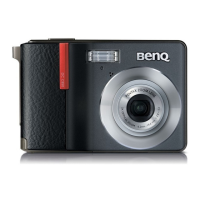
BenQ C1250
42 pages
Print Icon
To Next Page IconTo Next Page
Loading...
Welcome
C1250/C1255 Digital
Camera User Manual
C1250_C1255_UM - EN.book Page 1 Friday, March 26, 2010 1:33 PM

Questions and Answers

  • B
    Brenda HammondAug 13, 2025
    Why my BenQ Digital Camera cannot power up?
    • E
      ehudsonAug 13, 2025
      If your BenQ Digital Camera won't power up, it might be due to a couple of reasons. First, check if the batteries are correctly inserted. If not, insert them correctly. Second, the batteries might be completely drained. In this case, replace them with fresh ones.
  • C
    Christopher RiosAug 16, 2025
    What to do if my BenQ Digital Camera does not shoot?
    • M
      Malik MendezAug 17, 2025
      If your BenQ Digital Camera isn't shooting when you press the shutter button, several factors could be at play: 1. The batteries might be low, so try replacing them. 2. Ensure the camera is in Capture mode. 3. Make sure to press the shutter button all the way down. 4. Check if the memory card or internal memory is full; if so, load a new card or delete files. 5. If the flash is still recharging, wait for it to finish. 6. If the camera doesn't recognize the memory card, format it.
  • D
    Dr. Melissa SantosAug 20, 2025
    Why I cannot download images from BenQ Digital Camera to my computer?
    • V
      Valerie GouldAug 20, 2025
      If you're having trouble downloading images from your BenQ Digital Camera to your computer, there are a couple of potential causes: * Your computer's hard drive might not have enough free space. Ensure that the drive for loading image files has free space equal to or greater than the memory card in the camera. * The camera may not be receiving power. Try replacing the batteries.
  • M
    Marvin LittleAug 25, 2025
    How to fix flash if it does not fire in BenQ Digital Camera?
    • T
      thomasvasquezAug 25, 2025
      If the flash on your BenQ Digital Camera isn't firing or recharging, the flash might be turned off. Try setting the flash to Auto Flash.
  • B
    bakermichelleAug 28, 2025
    Why is image too bright on BenQ Digital Camera?
    • A
      Alejandro MccoyAug 28, 2025
      If your images are consistently too bright or too dark with your BenQ Digital Camera, it could be due to excessive or inadequate exposure. Reset the exposure compensation to resolve this.
  • T
    tami19Aug 31, 2025
    What to do if I cannot format memory card on BenQ Digital Camera?
    • K
      Kevin JimenezAug 31, 2025
      If you're unable to format a memory card in your BenQ Digital Camera, it could be due to the following reasons: * The memory card is write-protected. Remove the write protection. * The memory card has reached the end of its life. Insert a new memory card.
  • T
    Tyrone MeyerSep 4, 2025
    Why is image dark even though flash fired on BenQ Digital Camera?
    • W
      William RichardsSep 4, 2025
      If you're finding that your images are still dark even after the flash fires on your BenQ Digital Camera, it might be because you're too far from your subject. Try getting closer to the subject and shooting again.
  • J
    Johnny RamseySep 8, 2025
    How to print images with PictBridge printers on BenQ Digital Camera?
    • E
      Eric BrownSep 8, 2025
      If you cannot print images with PictBridge-compliant printers from your BenQ Digital Camera, make sure that the camera is connected to the printer, then turn on the camera, and select Printer.

Summary

Safety Warning and Notice

For Your Safety

Essential safety precautions for handling the camera and its accessories, including keeping away from children and avoiding disassembly.

Warranty Information

Conditions under which the camera's warranty may be voided, such as damage from external factors or incorrect usage.

Camera Care and Maintenance

Guidelines for maintaining and protecting the camera from damage, including cleaning and storage advice.

Operating Environment

Suitable and Unsuitable Environments

Guidelines for suitable and unsuitable environments for camera use and storage, including temperature and weather conditions.

Touring the Camera

Camera Overview

A guide to the camera's components, including package contents, front, bottom, and rear views.

Preparing the Camera for Use

Battery and SD Card Usage

Instructions for installing/removing batteries and using SD memory cards, including formatting.

Initial Setting

Language and Date;Time Setup

Steps for setting the camera's language and date/time upon first use for proper operation.

Operating the Camera

Capture Mode

Shooting Modes

Selection of different modes like Auto, Program, Aperture Priority, and Manual for various shooting scenarios.

Focus and Flash Control

Adjusting focus modes, flash modes, and AF assist lamp for optimal image capture.

Exposure and Image Settings

Managing ISO, White Balance, EV, Image Quality, and Image Size for desired photo results.

Movie Recording

Configuration options for video recording, including format, resolution, and sound settings.

Other Settings

Basic Settings

Adjusting sounds, power saving options, LCD brightness, and language settings.

System Settings

Managing file numbering, TV format, battery type, memory, and resetting camera operations.

Playback Mode

Viewing and Editing Images

Magnifying, rotating, and managing image files for playback and basic editing operations.

Playback Features

Adjusting volume, creating slideshows, and using playback controls for media files.

File Management and Effects

Deleting, protecting, adding voice memos, and applying photo effects to images.

Working with Computer and AV System

Connections and File Transfer

Steps for connecting to computers/AV systems and transferring files, including bundled software.

Printing Images

Methods for printing photos, including direct printing via PictBridge.

Troubleshooting and Service Information

Problem Solutions

Common camera operational problems and their corresponding solutions for troubleshooting.

Technical Support

Information on obtaining technical assistance, driver updates, and product information.

Specifications

BenQ C1250 Specifications

General IconGeneral
TypeCompact
Optical Zoom5x
Digital Zoom5x
Image SensorCCD
Sensor Size1/2.3 inch
Image StabilizationDigital
Screen Size2.7 inch
LCD Screen Size2.7 inch
ISO SensitivityAuto, 100, 200, 400, 800, 1600
Shutter Speed1/2000 sec - 1 sec
Video Resolution640 x 480
Storage MediaSD/SDHC
Battery TypeLi-ion
Megapixels12.0 MP
Effective Pixels12.0 MP

Related product manuals