Playback mode 27
English
To play back a voice memo:
1. Press to play the voice memo.
2. Press to pause the playback.
3. Press to resume the playback.
4. Press to exit playback.
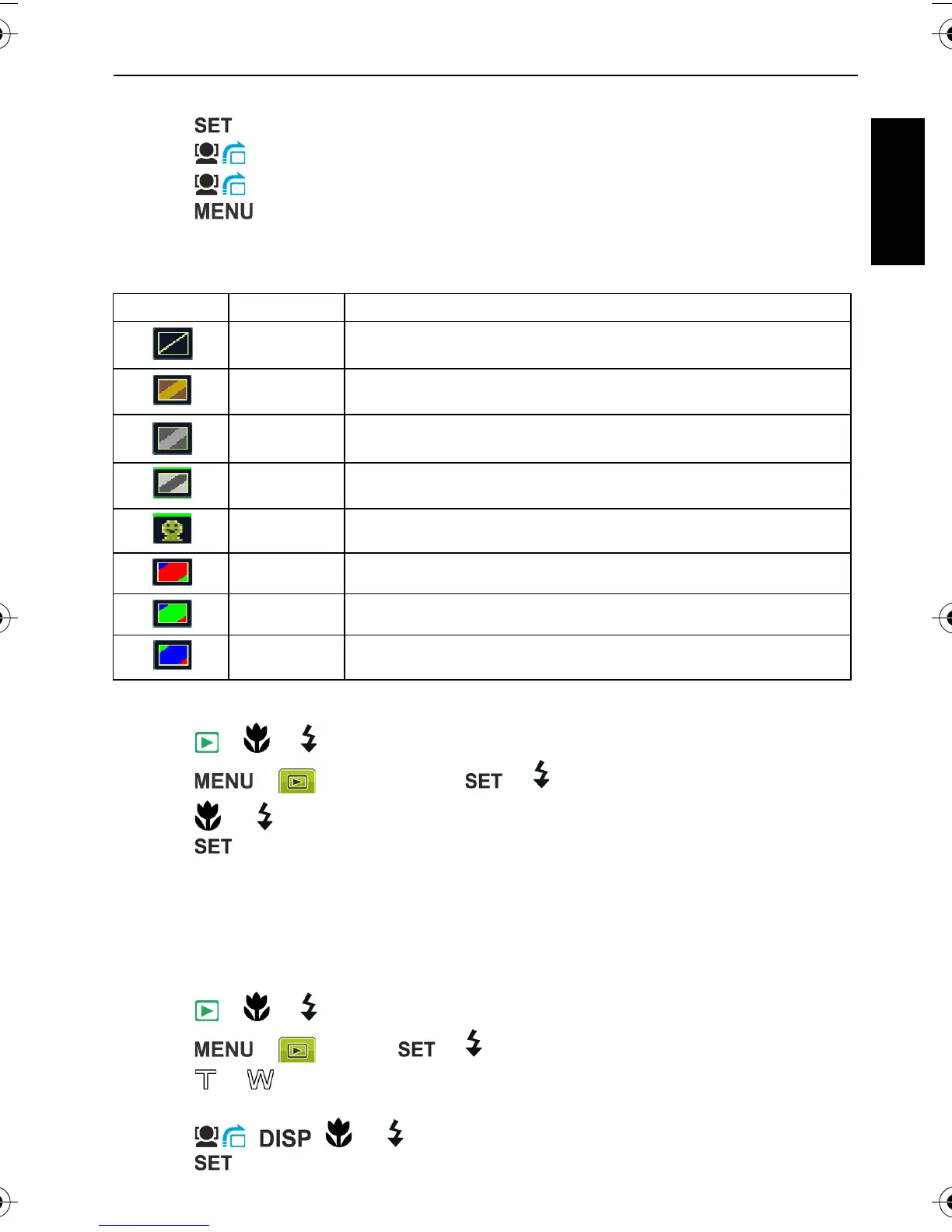
Photo Effect
You can add special effects to your images.
To add a special effect to an image:
1. Press > or to move to the image you want to add an effect to.
2. Press > > Photo Effect > or .
3. Press , or to select the effect.
4. Press to confirm the change and save the image file.
Trimm ing
Crops part of an image file, reduces the image size, and overwrites the image file or saves it
as another new file.
To trim an image:
1. Press > or to move to the image you want to trim.
2. Press > > Trim > or .
3. Press or to select the target image size (8M, 5M, 3M, VGA) to which you want to
reduce.
4. Press , , , or to locate the area to trim.
5. Press to confirm the change and save the image file.
Icon Option Description
Normal No effect is added to the image.
Sepia Recorded image will be stored in a sepia tone.
B/W Convert image to black & white.
Negative Colors become the opposite of what they were in the original
image.
Mosaic Applies a mosaic tile effect to the image.
Vivid Red The image becomes reddish.
Vivid Green The image becomes greenish.
Vivid Blue The image becomes bluish.
C1250_C1255_UM - EN.book Page 27 Friday, March 26, 2010 1:33 PM


 To Next Page