36 Upotreba (pod Launcher izvorom)
Navigating the BenQ Launcher home screen
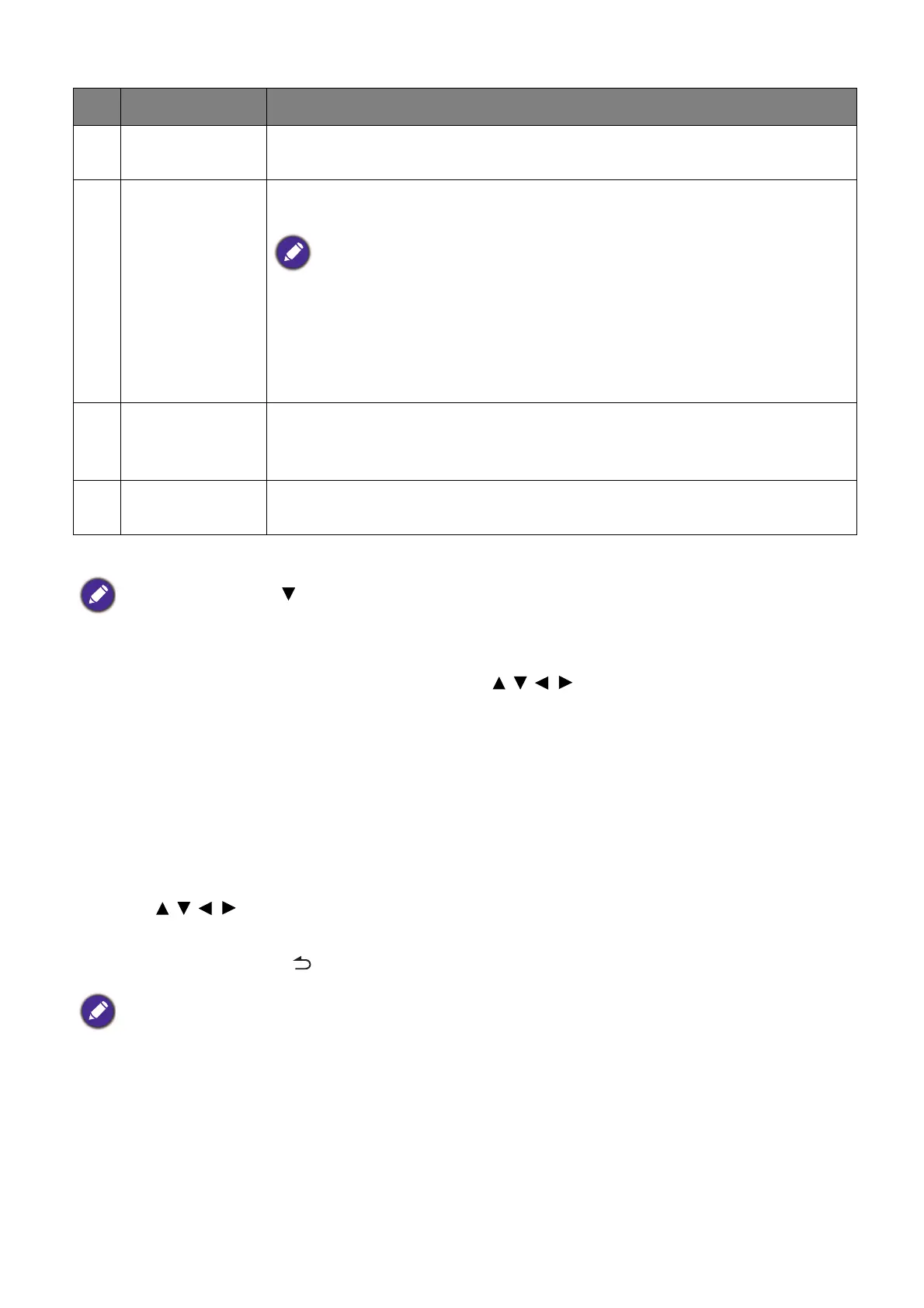
1. From the BenQ Launcher home screen, press / / / to select the desired function and
press OK.
2. Follow on-screen instructions for further operations.
Inputting text
Various menus within BenQ Launcher may require that you input text. You may either connect
a keyboard to the USB-1 or USB-2 port at the rear of the projector or follow the steps below:
1. Select the text field where you want to input text.
2. Press OK and a full alphanumeric keyboard will appear on screen.
3. Press / / / to navigate the keyboard, and press OK to select the letter/key/symbol
you want to enter into the text field.
4. Press the back button at anytime to exit out of the keyboard.
3 Sidebar
A menu of quick navigation buttons. See Using the sidebar on page 40
for more information regarding the sidebar buttons.
4 App Shortcuts
A customizable list of shortcuts for installed apps. See Using the App
Shortcuts on page 38 for more information regarding the app shortcuts
No app shortcuts appear on the default home screen. To add app shortcuts to the
home screen, use either the Screen Settings sub-menu in the Settings menu
or the AMS website. See Screen Settings on page 72 or refer to the AMS User
Manual which you can download at the following URL:
https://www.benq.com/en-us/business/index.html >
your Projector Model >
Downloads > User Manual.
5
AMS Service
Menu
Allows you to login to the projector using your AMS Service account.
See The AMS Service on page 27 for more information regarding the
AMS Service.
6 Toolbar
Buttons for the input source, all apps, and Settings menu. See Using
the Toolbar on page 39 for more information regarding the toolbar.
Press the down button to access the Source menu, App shortcuts, and Settings menus.
Actual keyboard types may vary based on your language preference setting. See Keyboard on page 74 for
more information.
No. Component Description







 To Next Page