25 Operation
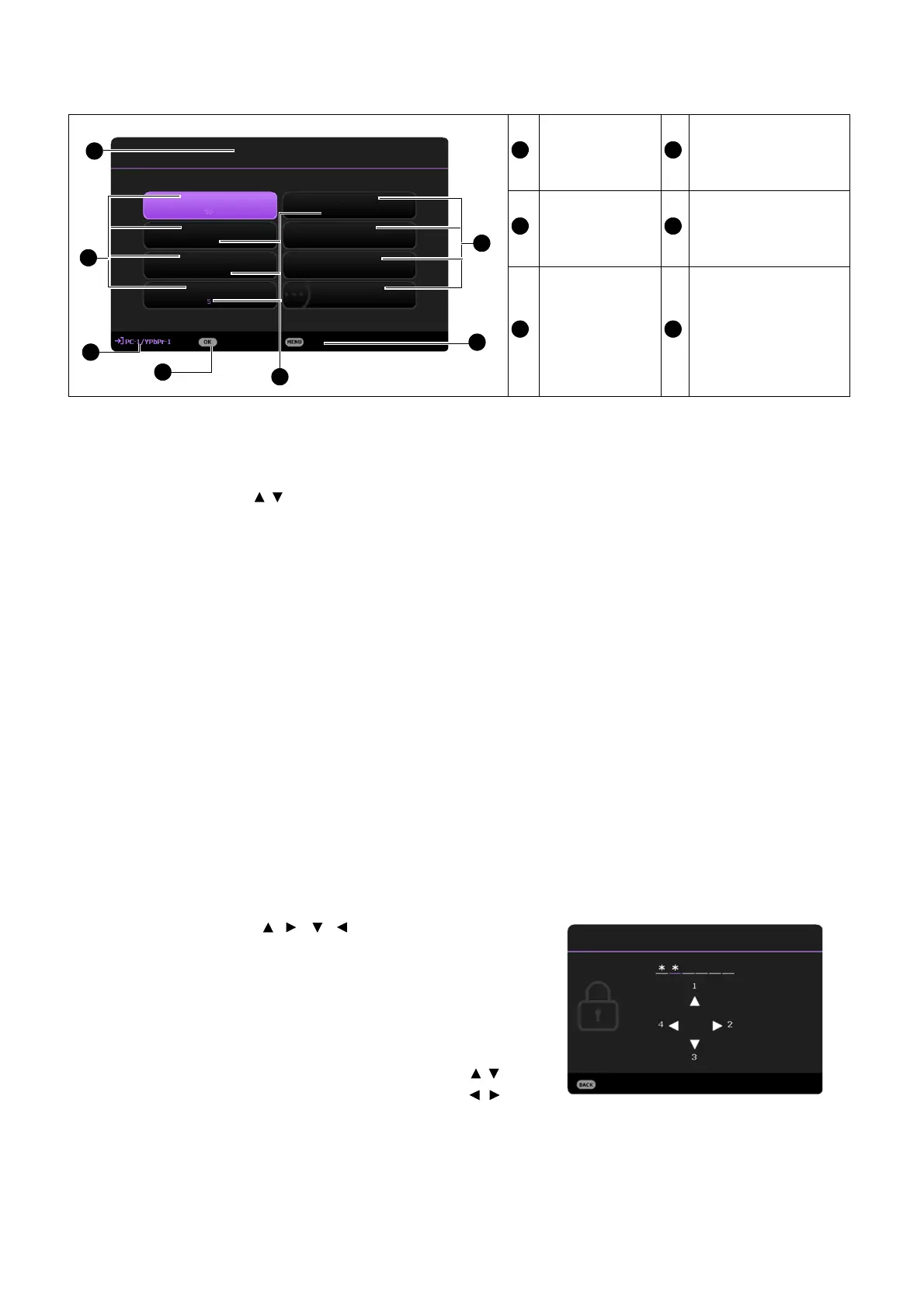
Below is the overview of the Basic OSD menu.
Likewise, when you wish to switch from the Basic OSD menu to the Advanced OSD menu, follow
the instructions below:
1. Go to Basic Menu > Menu Type.
2. Press OK and press / to select Advanced. Next time when you turn on the projector, you
may access the Advanced OSD menu by pressing MENU.
Securing the projector
Using a security cable lock
The projector has to be installed in a safe place to prevent theft. Otherwise, purchase a lock, such as
the Kensington lock, to secure the projector. You can locate an anti-theft lock slot on the rear side of
the projector. See item 23 on page 8.
A Kensington security cable lock is usually a combination of key(s) and the lock. Refer to the lock’s
documentation for finding out how to use it.
Utilizing the password function
Setting a password
1. Go to Advanced Menu - Settings > Security Settings. Press OK. The Security Settings
page appears.
2. Highlight Change Password and press OK.
3. The four arrow keys ( , , , ) respectively represent
4 digits (1, 2, 3, 4). According to the password you desire
to set, press the arrow keys to enter six digits for the
password.
4. Confirm the new password by re-entering the new
password.
5. To activate the Power On Lock function, press / to
highlight Power On Lock and press OK. Press / to
select On. Input the password again.
Menu Type
Press OK to enter
the menu.
Main menu Status
Current input
signal
Press MENU to
exit.
Basic Menu
Wireless LAN
Brightness
Aspect Ratio
2
1
2
6
Light Mode
Picture Mode
Volume
Information
Menu Type
Auto
Presentation
Dimming
Enter
Exit
5
3
4


 To Next Page