Operation 39
Setting the presentation timer
The presentation timer can indicate the presentation
time on the screen to help you achieve better time
management when giving presentations. Follow these
steps to utilize this function:
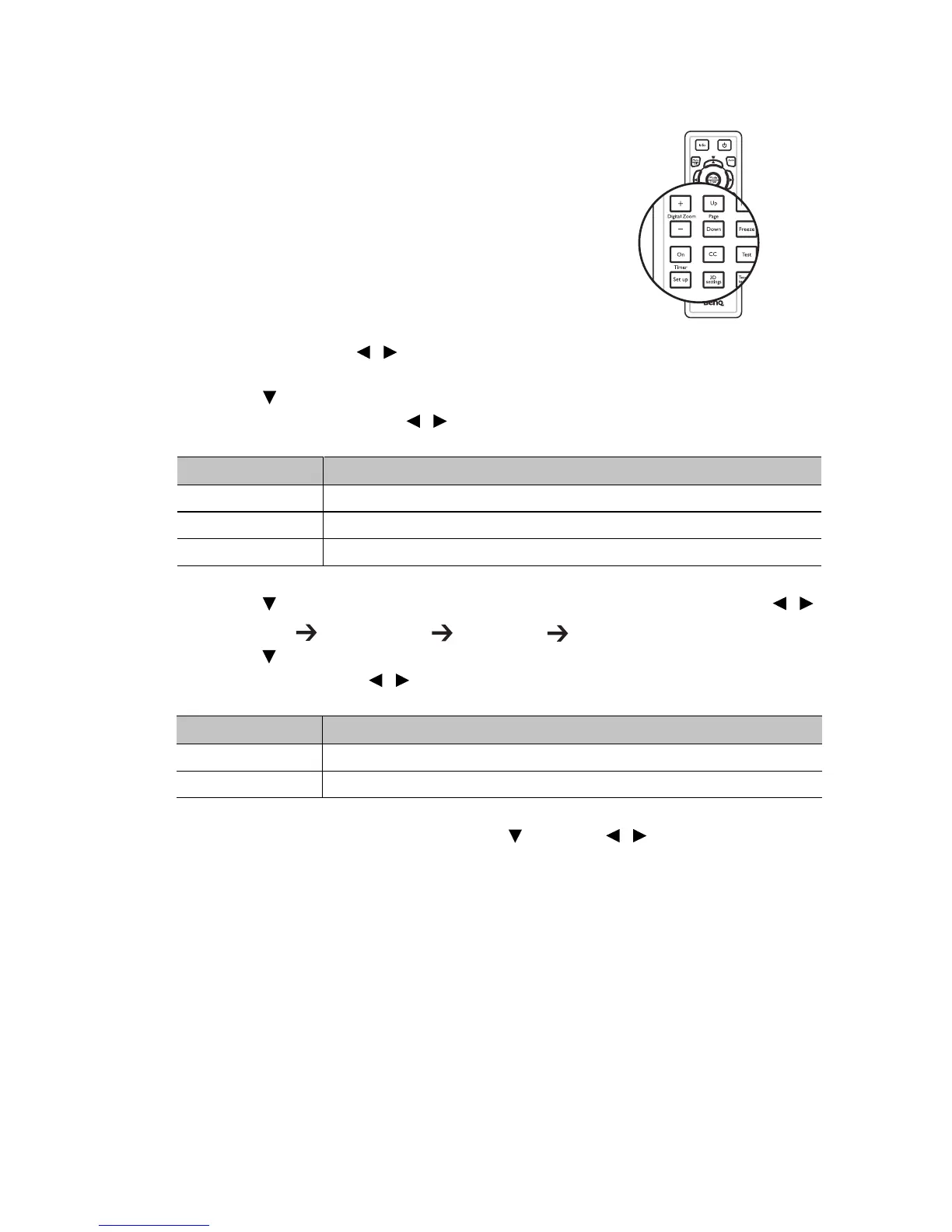
1. Press Timer Set up on the remote control or
go to the SYSTEM SETUP: Basic >
Presentation Timer menu and press MODE/
ENTER to display the Presentation Timer
page.
2. Highlight Timer Period and decide the timer
period by pressing / . The length of time can be set from 1 to 5 minutes in 1-
minute increments and 5 to 240 minutes in 5-minute increments.
3. Press to highlight Timer Display and choose if you want the timer to show up
on the screen by press
ing / .
4. Press to highlight Timer Position and set the timer position by pressing / .
Top-Left Bottom-Left Top-Right Bottom-Right
5. Press to highlight Timer Counting Direction and select your desired counting
direction by pressing /
.
6. To activate the presentation timer, press and press / to select On and press
MODE/ENTER.
7. A confirmation message displays. Highlight Yes and press MODE/ENTER to
confirm. You will see the message “Timer is On” displaying on the screen. The
timer starts counting at the time the timer is on.
Selection Description
Always Displays the timer on screen throughout the presentation time.
3 min/2 min/1 min Displays the timer on screen in the last 3/2/1 minute(s).
Never Hides the timer throughout the presentation time.
Selection Description
Count Up Increases from 0 to the preset time.
Count Down Decrease from the preset time to 0.



 To Next Page