Orbis – Operation
32
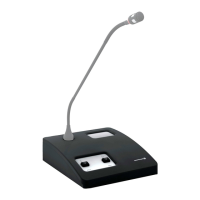
How to configure the delegate microphone unit as a press unit
When the delegate microphone unit is configured as a press unit, the microphone button is locked.
Note: Chairman microphone units cannot be configured as press units.
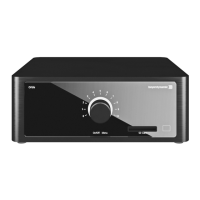
1. Make sure that there is no SD card in the slot of the Orbis CU control unit.
2. Select the “Priority” menu on the Orbis CU control unit.
3. Press and hold the rotary encoder .
4. Press the “REC” button once.
5. Release the rotary encoder .
6. Only the “Priority” menu item is flashing. The corona remains unchanged.
7. Press the microphone button of the delegate microphone unit, which you would like to configure
as press unit, until the microphone button illuminates orange.
8. End the configuration mode on the Orbis CU control unit by operating the rotary encoder once
(pressing or turning).
9. The configuration is stored in the microphone unit.
10. The configuration of the delegate microphone unit as a press unit is displayed every time the unit
is switched on via the microphone button which illuminates orange instead of white during the
first 5 seconds after switching on. Furthermore, the LED ring of the gooseneck microphone is
flashing/illuminating.
11. If the delegate microphone unit is not to be operated as a press unit any more, please proceed
with the configuration as described from 1. to 8. The microphone button of the delegate micro-
phone will illuminate white again.
4.11 How to Localise the Microphone Units/System Units
Via an external device connected to the RS 232 interface, you can find out where the microphone
unit/system unit is, because the LED ring of the gooseneck microphone in question is briefly flashing
several times (ends automatically after approx. 1 second).
Please refer also to the RS 232 protocol (MU Ping).




 To Next Page