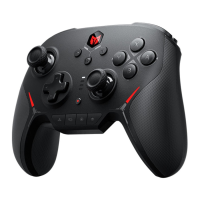
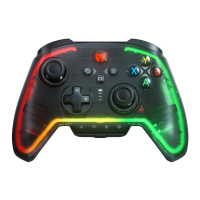
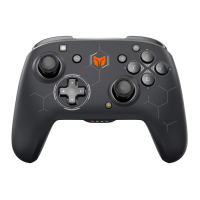
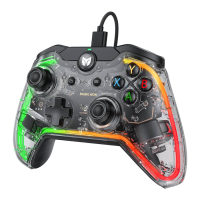
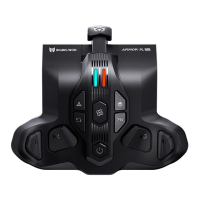
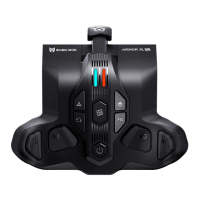
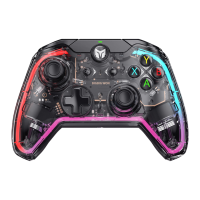
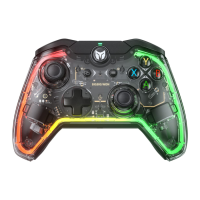
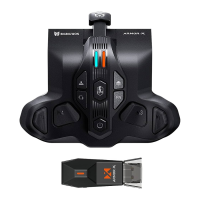
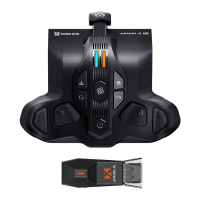
The 2.4G adapter and the controller have been paired by default, so after the controller is turned on, the connection
can be completed by inserting the 2.4G adapter into the console; if it is not connected, it needs to be re-paired, the
operation is as follows:
1. After the adapter is plugged into the console, press and hold the button on the adapter until the adapter indicator
blinks fast, which means the adapter enters the pairing mode.
2. After the controller is turned on, press and hold the pairing button on the top, the HOME button will
blinks fast, which means the adapter enters the pairing mode.
3. Wait for a few moments, both the adapter and controller‘s HOME button will stay on, it means the pairing is done.
Bluetooth connection:
1. After the controller is turned on, switch to the corresponding mode (xinput or switch mode), and then press and
hold down the pairing button on the top for 2 seconds, the HOME button will flash fast to indicate that it enters the
pairing mode.
2. To connect to Switch, go to "System Settings - Controllers and Sensors - Change Grip/Order" on your device and
wait for a few moments to complete the pairing.
3. When connecting to PC and mobile phone, you need to search for the controller signal in the Bluetooth list of PC
or mobile phone, the controller's Bluetooth name is Xbox Wireless Controller in Xinput mode. And in switch mode,
it is called Pro controller. After finding the corresponding signal, click Connect, and wait for a moment.
4. After Bluetooth pairing, the HOME button stays on. (Which of the channel indicators lights up in Switch mode
depends on the order in which the controller is plugged into the console)
Wired connection: after the controller is turned on, use the Type-Ccable to connect the controller to the console.
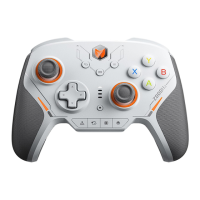
● This controller supports both Xinput and Switch modes, the default is Xinput mode.
● Steam: It is recommended to block steam output to protect the controller's original input.
● Switch: After wired connection to switch, you need to open "Settings - Controllers and Sensor - Pro Controller
Wired Connection".


 To Next Page