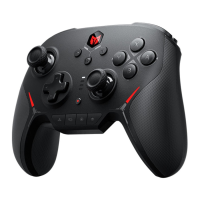
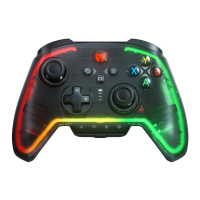
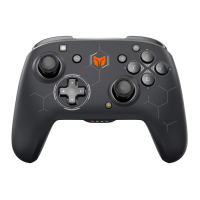
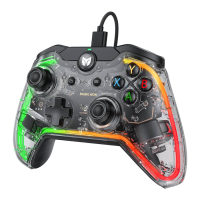
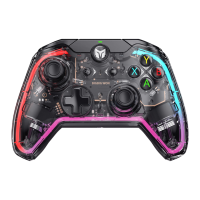
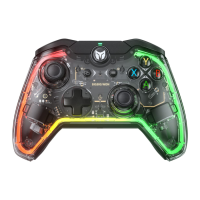
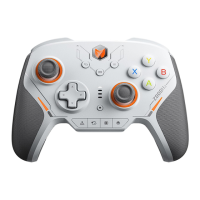
The controller supports two modes: Xinput and Switch. Before connecting, you need to switch to the
corresponding mode in order to use it.
1. Press and hold the B+HOME button for 2 seconds until the HOME indicator turns green to switch to Xinput
mode.
2. Press and hold the A+HOME button for 2 seconds until the HOME light turns red to switch to Switch mode.
Note: Bluetooth connection between iOS and Android platforms must be switched to Xinput mode first.
MODE SWITCH
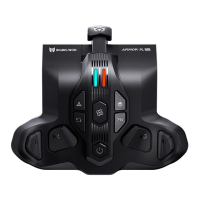
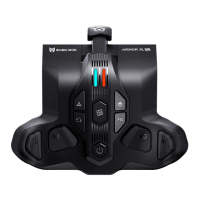
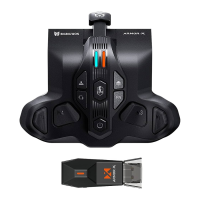
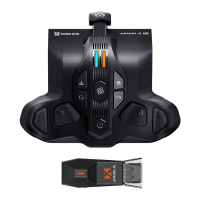
The controller is equipped with four remappable additional buttons and compatible with button mapping settings.
The settings are as follows:
Set Mapping:
1. Press and hold the Remap button + (M1/M2/M3/M4) for 2 seconds, and the indicator of the FN button light will
be in breath mode, indicating that it is in mapping mode;
2. Press the button on the front of the controller to be mapped to M1/M2/M3/M4 again and the FN indicator will
flash twice to indicate that the mapping is complete.
Clear Mapping: Long press the "Button to be unmapped (M1/M2/M3/M4)" and double click the Remap button, the
FN indicator will flash twice to indicate that the button's mapping has been cleared.
Clear All Mapping: Double-click the Remap button and the FN indicator will flash twice to indicate that the key
change settings have been cleared for all keys.
PC Tool: The shortcut setting only supports mapping the value of the controller's buttons to the back buttons
(M1/M2/M3/M4), but you can modify all the buttons of the controller with the PC tool.
MAPPING


 To Next Page