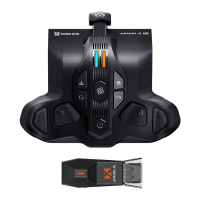
Switch mode:
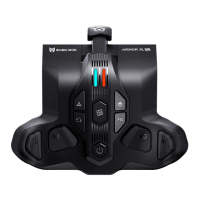
1. First click the Configs button so that the channel indicator changes from red to white, indicating that the
configuration can now be switched. The four indicators in this mode represent four different on-board configurations.
2. Click the Configs button again to switch configurations, and the indicators will switch in a top-down order, with
the first indicator being on for the first on-board configuration, and so on.
3. If the configuration is not switched within 5s, it will be automatically exited and the indicator will change from
white to red to indicate the channel again.
Xinput Mode: No channels are indicated in this mode, so the indicator lights default to white, indicating which set of
on-board configurations is currently in use. Clicking the Configs button in this mode will directly switch to the next
set of configurations.
Reset Configuration: Press and hold the Configs button for 3 seconds to clear all settings for the current
configuration slot.
ON-BOARD CONFIGS
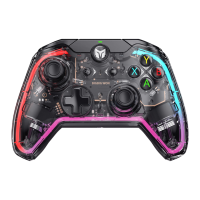
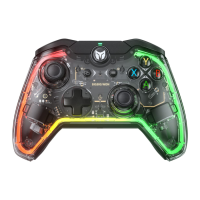
The default setting of this controller has a certain amount of joystick dead zone, users who have the need for
0 dead zone can press FN + press down left OR right joysticks (LS/RS) to switch the 0/10 dead zone of the left
and right joysticks respectively.
● Note: If the joystick has 0 deadzone, it means higher control precision, but it will also lead to joystick drift
in games with no deadzone.
● The default second set of configurations is a 0 deadzone joystick configuration.
DEADZONE OF JOYSTICK



 To Next Page