EasyManua.ls Logo

Billion BiPAC 3100SN - User Manual

Billion BiPAC 3100SN
48 pages
Print Icon
To Next Page IconTo Next Page
Loading...
User Manual
Last revised on May. 2011
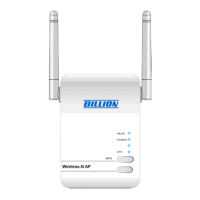
BiPAC 3100SN
Wireless-N Wall Plug
Ethernet Access Point
FW Version 1.08e-c

Questions and Answers

  • D
    Debbie MontgomeryAug 1, 2025
    What to do if I can't access Billion BiPAC 3100SN Wireless Access Point Web Configuration Interface?
    • T
      Troy DixonAug 1, 2025
      If you can't access the Billion Wireless Access Point LOGIN Web Configuration Interface, here are some things to check: * Make sure you're using the correct IP address (the default is 192.168.1.253). * Check that all hardware connections are correct and the LEDs are working as they should. * Confirm that your computer's IP address is in the same subnet as the Ethernet Access Point. * See if your browser has Java, JavaScript, or ActiveX enabled. If using Internet Explorer, refresh the page to load the Java applet. * Try closing and reopening your browser. * As a last resort, reset the device to factory defaults and try accessing it with the default IP address.
  • R
    Robert SmithAug 8, 2025
    How to reset my Billion BiPAC 3100SN password?
    • R
      Robert AveryAug 8, 2025
      If you've forgotten your Billion Wireless Access Point password, first try the default username (admin) and password (admin). Remember that these are case-sensitive, so ensure CAPS LOCK is off. If that doesn't work, restore the device to its factory default settings and then use the default username and password.
  • D
    David PerezAug 16, 2025
    How to factory reset Billion BiPAC 3100SN?
    • D
      david96Aug 16, 2025
      To reset your Billion Ethernet Access Point to its factory default settings, you can use either of the following methods: * **Hardware Reset:** Press and hold the reset button for more than 2 seconds, then release it. * **Software Reset:** Go to Administration > Restart, select the Factory Default Setting radio box, and click the Apply button. Wait approximately 35 seconds for the process to complete. Note that this will erase all your previous configurations, so backing up your settings beforehand is strongly recommended.
  • C
    Casey CowanAug 23, 2025
    Why my Billion BiPAC 3100SN is not starting?
    • S
      stevenlopezAug 23, 2025
      If your Billion Ethernet Access Point device won't start, check that the power supply is working correctly. This device relies on power from your home's electrical wiring, so it won't function without a working power supply.

Summary

BiPAC 3100 SN Wireless-N Access Point User Manual

Safety Warnings and Precautions

Adapter Installation Guide

Connecting the Access Point

Details the process of connecting the BiPAC 3100SN for power, LAN, and wireless functionality.

Basic Network Setup

PC Network Configuration

Provides instructions on configuring PC network settings to work with the access point.

Internet Access Configuration

Guides on configuring the device for internet access via its web interface.

Web Browser Configuration Steps

Explains how to access and configure the device using a web browser.

Advanced Configuration

LAN Settings

Allows configuration of the device's IP address, subnet mask, and LAN2/UPnP settings.

Wireless Settings

Provides access to various wireless configuration options like basic, security, and advanced settings.

Basic Wireless Settings

Covers basic wireless settings such as SSID, wireless mode, and channel.

Wireless Security

Enables configuration of wireless security modes like WEP, WPA, and WPA2.

Security Mode Details

Explains different security modes available, including WEP OPEN, WPA-PSK, and WPA2-PSK.

Troubleshooting

Common Problems and Solutions

Lists common device problems and their suggested solutions, including password recovery and connectivity issues.

Billion BiPAC 3100SN Specifications

General IconGeneral
Frequency Band2.4 GHz
Data RateUp to 54Mbps
SecurityWEP, WPA, WPA2
Power Supply5V DC
Device TypeWireless Access Point
InterfaceEthernet
Ports1 x RJ-45 Ethernet
Wireless Standard802.11b/g