
 Need help?
Do you have a question about the Binary B-900-MOIP-4K-CTRL and is the answer not in the manual?
Indicator for system status during boot and operation.
Recessed button to restart the device.
Ports not used for the MoIP system.
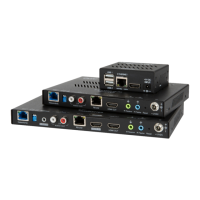
Connects to the MoIP switch for network access.
Port not used for the MoIP system.
Connects the provided power supply.
Resets device to factory settings.
Shows the power status (On, Blink, Off).
Indicates network and source connection status.
Provides network access and PoE power.
Configures IR receiver and DTE/DCE modes.
Embeds analog audio into HDMI.
De-embeds analog audio from HDMI.
Serial port for control and communication.
HDMI source input and loop output.
Receives IR signals from external receivers.
Outputs IR signals to emitters.
Restores factory settings by holding a button.
Connection for external power supply.
Shows the power status (On, Blink, Off).
Indicates network and stream subscription status.
Provides network access and PoE power.
Configures IR receiver and DTE/DCE modes.
Embeds analog audio into HDMI.
De-embeds analog audio from HDMI.
Serial port for control and communication.
HDMI loop output for local display.
Receives IR signals from external receivers.
Outputs IR signals to emitters/flashers.
Restores factory settings by holding a button.
Connection for external power supply.
Illustrates a typical network setup for the MoIP system.
Diagram for a setup with several sources and displays.
Diagram for a setup incorporating a video wall.
Steps to configure the network switch for MoIP.
Configuration steps for IGMP Snooping on the switch.
Ensures Jumbo Frames are set correctly for optimal performance.
Initial setup and claiming of the MoIP controller.
How to access the controller's interface remotely.
Process for updating controller firmware via OvrC.
Sequence for powering down and connecting system components.
Steps for powering on the MoIP system components.
How to discover and identify connected devices.
Process for updating transmitter and receiver firmware.
Pairing displays with sources for control system integration.
Settings for audio EDID and pass-through on transmitters.
Settings for video resolution and HDCP on receivers.
Information on how to get technical assistance and support.
 General
| Brand | Binary |
|---|---|
| Model | B-900-MOIP-4K-CTRL |
| Category | Transmitter |
| Language | English |

 To Next Page
